 NFC Expert
 Which iPhones support Apple Pay?
Smartphones that support the mobile money transfer facility have a special NFC chip built in, which allows you to exchange data over a short distance. Such a chip was not installed in earlier flagships, so there is a problem in using the mobile transaction system on some Apple devices. Consider which iPhones currently support contactless payments:
- iPhone 6/6 Plus;
- iPhone 6s/6s Plus;
- iPhone 7/7 Plus;
- iPhone SE.
To the dismay of many users, the revolutionary iPhone 5, 5c and 5s do not support Apple Pay. The only possible solution for owners of the flagships of the fifth model is to use the development of the Cupertino company using the Apple Watch smart watch. All you have to do is sync your iPhone 5 with your smartwatch.
https://www.youtube.com/watch?v=tplI3hZrXPE
The card can be both credit and debit – your choice. But be sure to use the MasterCard payment system.
Information on the work of Visa and Maestro can be found on our website.
Debit:
- Electron
- Classic
- Aeroflot Classic
- “Youth” Classic
- Classic with custom design
- Gold
- Aeroflot Gold
- Momentum
- Platinum
- Infinite
- Signature Aeroflot
- “Give Life” Classic
- Give Life Gold
- Give Life platinum

Mastercard:
- World Elite “Sberbank First”
- World Black Edition
- World Golden
- Platinum
- Gold
- Standard
- Standard Contactless
- Standard with custom design
- Standard Youth Card
- Standard youth card with individual design
- Standard Momentum
Credit:
- Classic
- Gold
- “Give Life” Gold
- “Give Life” Classic
- Aeroflot Gold
- Aeroflot Classic
- Momentum
- Signature
Mastercard:
- Gold
- Standard
- Standard Youth Card
- Credit Momentum
So, we figured out the Apple Pay application: which models have a payment service and the ability to make a payment. But why is the work carried out only on new models of devices? This is due to the fact that older models are not equipped with special NFC technology (near contactless communication), which helps to connect the smartphone to the terminal. Due to its absence, the payment cannot be completed.
However, many people continue to wonder which older iPhone models support Apple Pay. Unfortunately, such devices do not work with the system, however, using the iPhone 5.5c and iPhone 5s, you can set up Apple Pay on your iWatch. The fact is that the card can only be connected to the watch using an iPhone.
How to add a card to Apple Pay via Wallet
If you are an iWatch owner, you no longer have to worry about how to set up the service and on which iPhone models Apple Pay works. As we found out, the service will not work on the old model, only with iPhone 5/5s/5c in conjunction with iWatch. Connecting the watch to the device is very simple. First, make sure that the watch model really supports the system (Apple Watch 1st generation, Apple Watch series 1.2 is allowed).
To link a card to iWatch you need:
- Open the Apple Watch app on your iPhone.
- Find the “Wallet and Apple Pay” option. To do this, scroll through the list of tabs and click on the one you need.
- Add a card. In the tab that appears, you will see information about the attached card. To the right of it is the “Add” button, by clicking on which, the card will be linked to the clock. If the bank card is not yet registered in the system, click on the “Add payment card” button.
- Complete Apple Pay activation on iPhone and iWatch. To do this, enter the card details, in particular, the security code, which is located on the back of the card. Click “Next” and wait for the registration to complete. At the end, you will receive a notification that the map binding is completed.

Many people wonder how to install Apple Pay on iPhone 4, 4s. Unfortunately, this action is not possible even if you have an Apple watch.
The connection between the device and the terminal is carried out using a special chip built into each iPhone. This chip performs data exchange at a short distance from the terminal. After connecting, you must click on the Touch id button to confirm the payment. The built-in NFC module will complete the operation.
To link a card to an Apple Pay account, you must:
- Open the Wallet app.
- Click on the “ ” sign, adding a payment card to the system.
- Fill in the required data / take a picture of the card.
- Complete the registration, waiting for the notification of successful linking of the card.
It’s worth making sure that the contactless payment app on iPhone really works with your bank card. In order to be convinced of this, check out the rest of the articles on our site – all the necessary information is collected here. As a rule, information about cooperation is indicated there. It is worth remembering that at the moment only Tinkoff Bank and Alfa-Bank work with Visa and Master Card cards, and all the rest work only with the second type of payment system.
After you have linked the card to the system, you do not have to turn on the system additionally. Apple Pay starts automatically. To verify this, open the Wallet app. If you see a small window with iPay there, be sure that the application is already working!
However, if you are unable to make a payment, you should learn more about how to connect Apple Pay on iPhone. Make sure Touch id is enabled. To do this, go to your phone settings and open the “Touch id” tab. Enter the password code and turn on the technology.
In order to pay for the purchase, you need to make sure that the terminal really supports this payment method. As a rule, there is an iPay sign on the terminals and devices, which confirms the possibility of performing this operation. In addition, you can check which stores accept contactless payment with iPhone on our website. Now almost all major stores and establishments of the country work with the system, providing customers with pleasant bonuses and discounts.
If you pay in store:
- Touch the Touch ID button by bringing the device close to the terminal.
- Hold the smartphone at a small distance from the device, wait for confirmation of payment completion.
If you use contactless payments on iPhone in the app/online store:
- Find the “Pay with Apple Pay” button. Click on it.
- Hold your finger on Touch ID, wait for the payment to complete.
It’s very easy to unlink a credit or debit card from your account:
- Open iCloud. On the site, go to the settings, in the appeared tab “My devices”, select the one you need.
- Click “delete” or “delete all” in the list of registered cards.
Now you know everything about the system: what is Apple Pay on iPhone and how to use this service.
The system started working in early October 2016 on current Apple devices, including iPhone 7, 7 Plus. The user does not need to update the firmware or install additional programs. On the day of the official release, the service automatically began to function on all supported devices.
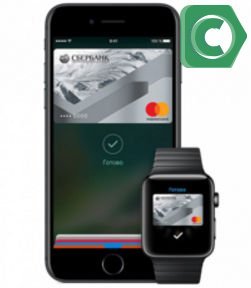
The process of setting up the service is quite simple and takes about 15 minutes. So what do you need to get started with Apple Pay? First, the Wallet payment application, whose icon is located on one of the desktops. Secondly, Apple ID. Finally, thirdly, a bank card.
Step 1. Launch Wallet.
Step 2. Select “Add a card” from the presented blocks.
Step 3. At this stage, you will need a bank card. Either scan the front side using your smartphone’s camera, or click “Manual data entry” and, in fact, enter.
https://www.youtube.com/watch?v=IIppLHCICR8
Step 4. Now you will need to carefully enter the first and last name as it is indicated on the front side of the card.
Step 5. In the next paragraph, you need to indicate the expiration date of the card and the security code (three characters on the back).
Step 6. To confirm the user data, you will need to enter a password that will be sent in an SMS message. Then we see a notification about the successful setup of Apple Pay.
Given the seriousness of the “apple” giant company, there should not have been any mistakes with the payment system. However, they do exist, albeit very rarely.
1. The most common problem, most often, occurs due to the lack of support for a number of bank cards. In this case, you will have to change the card or wait for the bank to start working with Apple Pay.
2. Sometimes it is enough to wait a while and then repeat the process again. Other problems due to which Apple Pay does not work on the iPhone 7 or 7 Plus are solved by contacting Apple Pay support by phone, as well as visiting a bank branch.
The Apple Pay payment system was introduced in 2014 and received full support only in the next generation of smartphones after the iPhone 5s. That is, such an electronic component as NFC was added to them. It can be found for the first time in mobile devices iPhone models Se, 6 and 6 Plus.
The concept underlying this wireless payment system is that the user’s smartphone has an appropriate transmitter and a program is installed. Supported cards have been added to the latter. Then in the store at the checkout, the owner activates his mobile device and confirms the transfer of funds to another account. The transaction takes place instantly and this method is more convenient than, for example, paying for a purchase with cash or a plastic card.
Quite a lot of time has passed since the presentation of this payment system. During this period, she managed to gain popularity and receive multinational support. We can say with full confidence that the future lies with her.

First you need to install the application itself and register in it. It is likely that if you are a client of Sberbank, then the application on your smartphone has been installed for a long time, because it is really very convenient to use it. If not, find it on the App Store.
iPad Pro, iPad Air, iPad, and iPad mini models with Touch ID or Face ID
In order to connect the contactless payment system, you need to install the Wallet application on your phone after authorization using your personal Apple ID. After a successful login, you will be able to add a payment card. By selecting the appropriate function, the user will be asked to take a picture of his personal bank card. You can opt out of this method by entering all the data manually.
Next, you will need to confirm the entered information by entering the code that Sberbank will send to the user’s number. If words such as “Card activated. MasterCard Standard Ready for Apple Pay”, then you can start successfully using the contactless payment system.
For Sberbank customers, connecting the contactless payment function is much easier and faster. All that is required is to launch the Wallet application and select the appropriate bank card, which will automatically appear in the wallet collection.
Owners of synchronized smartwatches will receive a notification immediately after activating the card on their iPhone, which will offer to add this card to the device. The program will prompt you to come up with a small password, after which the user in the Wallet application will be able to add a card, after filling in the necessary information. The only thing that will need to be done is to confirm your identity again by entering the code from the SMS from Sberbank.
Let’s consider what are the ways to use the application for mobile payments. After activating the card, you can safely start using this system, paying for purchases in supermarkets and shops. To do this, just bring your iPhone to the terminal without opening the Wallet application. The phone will automatically recognize the payment device and offer to make a fingerprint scanner. After the user touches Touch ID with his finger, money for the corresponding purchase will be withdrawn from the bank card.
What cards can be connected to Apple Pay?
Connecting and using the Apple Pay program is available for such devices as: iPad, Apple Watch, iPhone. We suggest considering the settings for each of them.

Both debit and credit cards of Sberbank are suitable for connecting Apple Pay.
It is possible to connect and use the application on iPhone, smart watch and iPad. Let’s see how to set up each of them in more detail.
Conclusion
This review has detailed how to set up Apple Pay on iPhone 5S and start using this convenient technology to make purchases. Although nominally this technology cannot work on such a smartphone, but due to certain manipulations, it can still be applied on this device.
Connecting to the mobile payment system allows you to make payments without physically having plastic. To complete the procedure, just put your finger on Touch ID. Connection takes place through the mobile application of the online service or directly through an iPhone, and its use is comfortable and simple.
19-05-2018
A little about Apple Pay

Apple Pay is a contactless payment function for goods and services integrated into the Wallet payment system. It features easy operation and a high level of user data protection. Apple Pay has been successfully operating in other major countries for a long time, but it reached Russia only in the second half of 2016.
Apple Pay payment system in Sberbank?
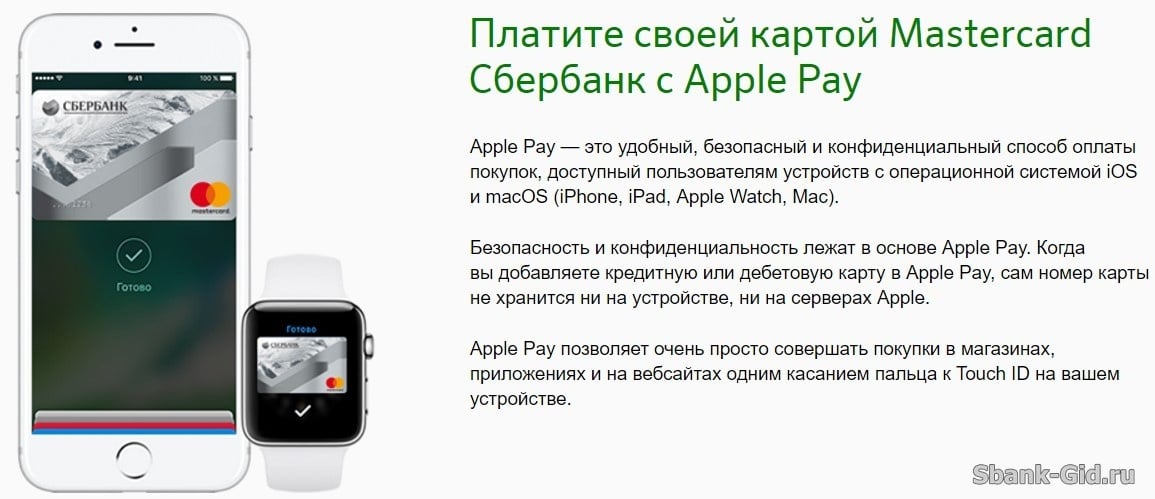
Using Apple Pay on iPhone 7 and 7 Plus is as easy as setting it up. You don’t even have to sign in to the app. Simply bring your iPhone 7 or 7 Plus to a payment device that supports contactless payments and hold your finger on the Home button for a while. Successful completion of the operation will confirm the symbolic image on the iPhone screen.
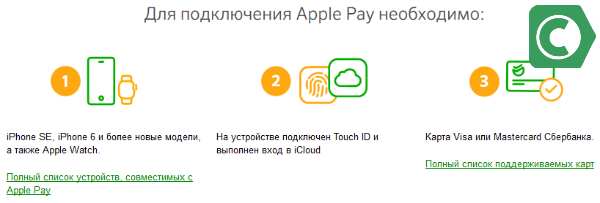
- Set up the Touch ID scanner. For the purposes of making payments secure, it is strictly not recommended to register fingerprints of other (even the closest) persons by tying them to the device.
- Sign up for iCloud using your mobile device.
- You must have a Visa or MasterCard payment system card.
- You need to add a bank card in the Wallet application of your phone.
https://www.youtube.com/watch?v=ucLh1SK_Y6k
The Apple Pay program from Sberbank is also available to owners of virtual stores. A service such as acquiring allows you to set up the acceptance of payments directly from mobile devices to the corresponding applications in online stores. This allows you to expand the circle of potential consumers.