 NFC Expert
 Download Samsung Pay
Samsung Pay is a popular service. It is available on smartphones from a Korean company, allows you to make quick payments for purchases and not use a plastic card for this purpose.
The essence of the system is simple. Initially, the user adds his card to the application, confirms the provision of access to the bank account. In the future, he can make payments through the payment service, simply by attaching the device to the terminal. Contactless payment is much more convenient for users, there is no need to constantly carry a plastic card with you.
Samsung Pay: what is this program
Samsung Pay is a mobile contactless payment service developed by Samsung Electronics and used on Samsung phones. The service allows users to pay for purchases using mobile phones and smart watches.
One of the main differences between Samsung Pay and its competitors is that it supports not only NFC payments, but also electromagnetic transfer technology (MST) payments. This allows you to pay even on older terms that only support magnetic tape cards.
Magnetic Secure Transmission (MST) technology transmits payment card information directly into the plastic card slot. This tricks the terminal into thinking that a real card has been swiped.
An application of the same name is used to provide the Samsung Pay service.
How to install Samsung Pay?
If you have a Samsung phone, then this application must be pre-installed. If not, then you can install it from the Google Play app store. To do this, just go to Google Play, use the search and install Samsung Pay.
Once installed, the Samsung Pay app will need to be configured to include payment cards. After that, Samsung Pay will be ready to pay for purchases.
Let’s walk through the process of installing the APK file on an Android device:
- Initially, you need to find the Samsung Pay app on one of the third-party sites. Click on the download button, the file will be downloaded to the memory of your device.
- Open your phone’s file manager, find the APK in the download folder.
- Click on it, wait for app verification.
- Now confirm the program installation.
- After installation, you can run the application.

Antivirus protection on Samsung can block a program if it is able to perform hidden suspicious actions. It is recommended to download such software from official stores.
Adding a card
To add a new card you need:
- Go to the corresponding section in the application.
- Scan the card with the camera.
- Check if the data is correct.
- Confirm that there are no errors in scanning.
- The phone linked to the card will receive a text message with a code.
- Enter the received password to confirm the binding.
- Now you can make payments with this card, you will always have it with you.
Additionally, Samsung Pay is supported by some online resources. If this service is available on the site or in the application, the system will offer you to pay through it.
Samsung Pay also allows you to transfer money. You can quickly send funds to another user without logging into Internet banking systems for this purpose, saving time.
Loyalty cards can also be stored in the application. Pre-scan and add plastic to the program. In the future, it is enough to show the barcode of the card at the checkout for reading.
Various banks in the Russian Federation cooperate with the Samsung Pay service. For example, Sberbank, VTB, AlfaBank, etc.
Unlike Google Pay, which works on any modern smartphone with NFC, Samsung Pay payment service is available only to users of Samsung smartphones. At the same time, only relatively recent models are supported. Below we provide a complete list of devices on which you can use this service.
| Galaxy S10e (SM-G970F) Galaxy S10 (SM-G973F) Galaxy S10 (SM-G975F) Galaxy S9 (SM-G960F) Galaxy S9 (SM-G965F) Galaxy S8 (SM-G950F) Galaxy S8 (SM-G955F) Galaxy S7 edge (SM-G935F) Galaxy S7 (SM-G930F) Galaxy S6 Edge (SM-G928F) Galaxy S6 (SM-G920F) — только NFC Galaxy S6 Edge (SM-G925) — только NFC | Galaxy Note9 (SM-N960F) Galaxy Note8 (SM-N950F) Galaxy Note5 (SM-N920C) Galaxy A70 (SM-A705F) Galaxy A50 128 Гб (SM-A505FM) Galaxy A50 64 Гб (SM-A505FN) — только NFC Galaxy A40 (SM-A405F) Galaxy A30 (SM-A305F) — только NFC Galaxy A20 (SM-A205F) — только NFC Galaxy A9 2018 (SM-A920F) — только NFC Galaxy A7 2018 (SM-A750FN) — только NFC Galaxy A8 (SM-A530F) Galaxy A8 (SM-A730F) |
| Galaxy A6 (SM-A600F) – NFC only Galaxy A6 (SM-A605F) — только NFC Galaxy A7 2017 (SM-A720F) Galaxy A5 2017 (SM-A520F) Galaxy A3 2017 (SM-A320F) Galaxy A7 2016 (SM-A710F) Galaxy A5 2016 (SM-A510F) Galaxy J6 (SM-J610FN) — только NFC Galaxy J4 (SM-J415F) — только NFC | Galaxy J7 2017 (SM-J730F) Galaxy J5 2017 (SM-J530F) Gear S3 classic (SM-R770) | frontier (SM-R760) Gear Sport (SM-R600) — только NFC Galaxy Watch (SM-R800N, SM-R810N) — только NFC Galaxy Watch Active (SM-R500) — только NFC |
Также нужно отметить, что Samsung Pay не будет работать на устройствах, где пользователь получил root-права. При этом восстановление стандартной прошивки не поможет. Устройства с root-правами навсегда теряют возможность работать с Samsung Pay.
Для того чтобы сервис бесконтактной оплаты Samsung Pay работал он должен поддерживаться не только телефоном, но и банком пользователя. На данный момент к сервису можно подключить следующие платежные карты:
- «Альфа-Банк» (MasterCard и Visa);
- «Тинькофф Банк» (MasterCard и Visa);
- «ВТБ24» (MasterCard и Visa);
- «Рокетбанк» и «Точка» (MasterCard);
- «Яндекс» (MasterCard);
- «Райффайзенбанк» (MasterCard и Visa);
- «МТС-Банк» (MasterCard и Visa);
- «Сбербанк» (MasterCard и Visa, кроме серии Electron);
- «Банк Санкт-Петербург» (MasterCard);
- «Русский Стандарт» (MasterCard);
- «Открытие» (MasterCard и Visa);
- «БИНБАНК» (карты «МДМ Банк»)
В дальнейшем список банков и карт будет расширяться. Обратитесь в поддержку вашего банка, для того чтобы получить подробную информацию о поддержке данного сервиса.
Как настроить Samsung Pay
Чтобы оплата через Samsung Pay заработала, ее нужно предварительно настроить. Для этого запустите приложение Samsung Pay, войдите по вашей учетной записи Samsung и согласитесь с условиями использования.
После этого настройте удобный для вас способ разблокировки телефона. Для работы с сервисом Samsung Pay могут использоваться только надежный способы разблокировки. Например, сканирование радужки глаза или отпечаток пальца.

Также приложение попросит ввести отдельный PIN-код для Samsung Pay. Данный PIN-код будет использоваться только в этом приложении и отличается от основного PIN-кода, который используется для разблокировки телефона.
После этого вы попадете в основной интерфейс приложения Samsung Pay. Здесь нужно перейти в раздел «Оплата» и нажать на кнопку «Добавить карту».
Для добавления карты ее достаточно просто отсканировать при помощи камеры телефона.
Если со сканированием возникают трудности, то можно нажать на кнопку «Ввести вручную» и заполнить данные карты самостоятельно.
После ввода данных платежной карты приложение потребует выполнить проверку при помощи SMS сообщения. На ваш телефон придет SMS с кодом, который нужно будет ввести в специальное поле.
Последний этап настройки Samsung Pay – ввод собственной подписи в специальное поле на экране.
На этом настройка завершена. Подождите около 10 минут для того, чтобы ваша карта успешно зарегистрировалась в Samsung Pay. После этого телефон можно будет использовать для оплаты покупок.
Как работает Samsung Pay
После того как все настроено, сервис Samsung Pay готов к работе. Для оплаты покупок нужно сказать кассиру, что вы будете оплачивать с помощью карты, после чего провести пальцем вверх от нижнего края экрана. Этот жест автоматически запустит приложение Samsung Pay и подготовит его к работе.

After launching the application, you will need to log in using one of the configured methods. This could be an iris scan, a fingerprint check, or a PIN code. After authorization, the phone must be brought to the payment terminal.
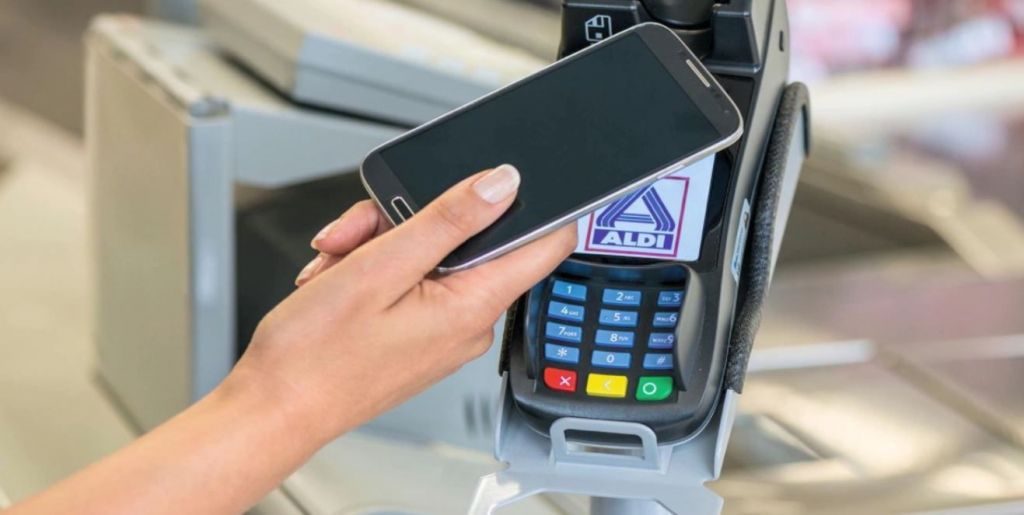
To pay using NFC technology, the phone must be brought to the top of the terminal.
https://www.youtube.com/watch?v=rM_i0lwEz5Q
If the terminal does not support contactless payment using NFC, then the phone must be brought to the magnetic stripe reader (on the right side of the terminal). In this case, the payment will be made using Samsung MST (Magnetic Secure Transmission) technology, which emulates the magnetic stripe of a payment card.
After that, the terminal should fix the payment, and a corresponding message should appear on the phone.