 NFC Expert
 Why doesn’t Android Pay work on Xiaomi
The main problem why your Xiaomi is naughty and unwilling to pay for purchases in a contactless way is an incorrectly conducted preparatory stage.
Before the guard seizes what you typed at the checkout, quickly run through the settings above. N FC must be enabled and the primary wallet used must be HCE Wallet.
https://www.youtube.com/watch?v=aZguL4gnfxU
It is possible that MIUI considered the wallet management application clogging RAM and unloaded it, so you can try to restart the application.
Very often, Xiaomi users complain that the application simply refuses to launch and says “Android Pay is not supported on this device.” And this happens even on smartphones without outside interference from the user. It turns out that the device may not be verified by Google if the official firmware is installed, but not the global one.
Plastic cards have long since replaced cash. But progress didn’t stop there. Now more and more popular payment method is payment through special applications installed on smartphones. Since phones already allow such operations to be carried out as detailed as possible, many brands release their own programs.
Since payment systems have not yet become one hundred percent in circulation, many people have a question whether Google Pay works on Xiaomi, and on which models it happens.
First, let’s figure out what characteristics a phone must have in order to be able to support this application.
The smartphone must be equipped with an NFC sensor.
The NFC module is the most important feature that provides contactless communication and, unfortunately, is not found in all Xiaomi phones.

Models with NFC chip:
- Xiaomi Mi 5 series (including Mi 5s);
- Xiaomi Mi 6 series;
- Xiaomi Mi 8 series;
- Xiaomi Mi Note 2, Mi Note 3 phones;
- Xiaomi Mi Max series;
- Xiaomi Mi Mix series.
You can check its availability in the technical specifications before buying, in the store with a consultant or through the “Settings” on an existing device.
Instruction:
- Go to “Settings”;
- At the very beginning of the page (“Wireless networks”), enter the tab “Additional/More/More”;
- There you should see the item “NFC”, if it is not activated, click on the slider to enable it;
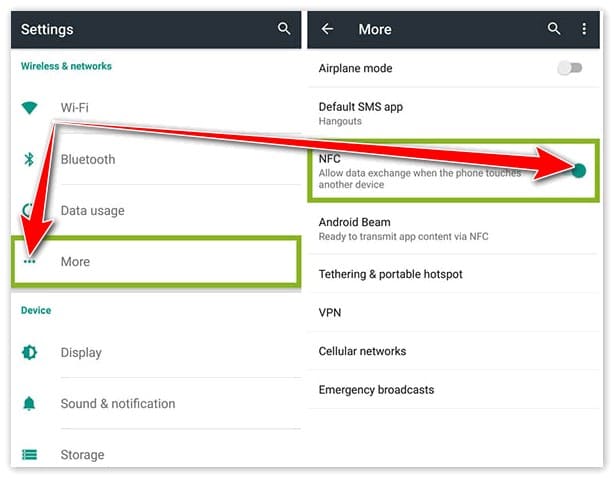
- To work with the application, you will also need to configure one function, to do this, click on the “Security element location” field on the same page;
- Instead of “Integrated Security”, select “Use HCE Wallet”;
Done.
In addition to this sensor, the phone must match several other characteristics.
These include:
- Android OS version above 4.4. If the version is lower, the program will not install, will not work properly, or you will not be able to link cards.
- Lack of root rights (developer/superuser rights).
- Finding the user where the given program has access. Otherwise, you simply will not find the application in the Play Market.
- Having a google account.
- Locked bootloader.
If one item does not match, it may be the reason why Android Pay is not working on your device.
Which Xiaomi models support the service
Before thinking about whether to install a program for financial transactions on your smartphone or not, you need to make sure that this will be at least of some use. The fact is that due to the peculiarities of the hardware, not all smartphones can adequately work with the program. And the point is not at all in the software part of the smartphone, but in the hardware features.
In other words, the installed program is not a guarantee that Mi Pay will work. In order for the program to work, you must use devices that support the NFC module. If this module is not in the design of the smartphone, then the program will remain a beautiful icon on the desktop that does not bring any benefit.
Let’s take a look at the list of gadgets where NFC equipment works and which can be a great platform for the program:
- Mi2A;
- Mi3 and Mi5;
- Mi5S and Mi5S Plus;
- Mi6;
- Mi Note 2;
- Mi Mix.
Simply put, the NFC module is on the flagship part of the Xiaomi Mi line. The new frameless smartphone Mi Mix has exactly the same parameters. Since there may be problems with the NFC module signal if the smartphone is in a metal case, then Mi5, Mi Note 2, Mi6 and Mi Mix are made of specially processed ceramics and glass.

And if there is no signal, then perhaps the matter is in the settings. In this case, you need to go to the menu and find Settings → Wireless networks → More → NFC (check the box if it is not there) → Location of the security element → HCE Wallet. As a rule, after that everything should work.
Xiaomi, a Chinese smartphone manufacturer, is known for its affordable and high-quality devices – Redmi, Redmi Note, Mi Max. These smartphones have impressive specs, while having a small price tag. But do they support NFC? Unfortunately, Xiaomi does not consider it necessary to install this chip in its devices, and below I will explain why.
But does the popular smartphone Xiaomi Redmi 4x support Android Pay? Yes, but payment in regular stores will not be available, as there is no NFC. Does the equally popular smartphone Xiaomi Redmi Note 4x support Android Pay? Yes, too, but again, in a limited form (payment at the checkout in a regular store is not available).
To put it simply, any Xiaomi Redmi smartphone on the official global firmware will support Android Pay in a limited mode: you can add a payment card to pay for purchases on the Internet, because a large number of sites support payment via Android Pay, and you can also store discount cards in the Android Pay service, because this does not require the presence of NFC.
Why doesn’t Xiaomi consider it necessary to install an NFC chip in its budget smartphones? It’s simple: in China, contactless payments have a very low prevalence. Here, payment via QR codes using the WeChat messenger and the Alipay service is widespread. So, we can say that they have already gone ahead of the rest of the planet in terms of payments.

As for Xiaomi Mi Max 2 smartphone: is there nfc in Xiaomi Mi Max 2? The answer will be the same – no. Therefore, if you want a Xiaomi smartphone with NFC, then you need to buy at least Xiaomi Mi 5 or Xiaomi Mi 6.
Before talking about setting up Android Pay on your smartphone, you need to make sure that it supports the contactless payment function. The mobile device must meet a number of requirements in order for the Android Pay service to function properly. These include:
- Root rights disabled.
- Locked bootloader.
- Firmware for the gadget of the official version from the developer.
You can find out if your gadget has this function by carefully studying the instructions that came with the device. If you don’t have an NFC chip, you can still use contactless payment, but only in apps and online stores.
List of the most popular Xiaomi models that have a built-in Near Field Communication chip and support Android Pay payment service (the full list can be found here):
- Mi 2 A;
- Mi 3 and Mi 5;
- Mi 5s, Mi5s ;
- Mi 6;
- Mi 8;
- Mi note 2 and Mi mix.
If you have found your device in the list, you can start installing Android Pay.
As a separate point, it is worth noting that there are devices in the Xiaomi smartphone line that are not equipped with a Near Field Communication chip, these include the Xiaomi Redmi and Xiaomi Mi Max series.
Most models equipped with an NFC sensor are made of plastic, plexiglass or glass ceramic. This is due to the fact that the transmission of radio frequency waves through which the chip works is better through such materials than through metal.
An exception to this rule are the Xaiomi mi 5 and mi 5 s models, they have a well-established NFC sensor, despite the fact that there are metal products in the smartphone case.
If the characteristics of your phone meet the requirements of the service, you should go to the Google Play Market, find the Google Pay application there, and download it to your smartphone. To set up the app on your Xiaomi device, please follow the simple step by step guide:
- Go to the downloaded files, find the Google Pay app and launch it.
- If you have multiple Google Accounts, please select the one you want to use. The bank card details added to the account earlier will be automatically displayed in the program, if not, you need to add a card.
- Find the “ ” sign in the right corner, click on it, select “Add a credit card or debit card”, then scan the card so that its front side is visible in the rectangle on the screen, or enter the data manually (card number , expiration date, three-digit CVC code). You may need to confirm the action using SMS.
- If necessary, you can add several more bank cards, following the same algorithm.

Setting up the Xiaomi device itself (only possible if the smartphone has NFC):
- Enter the device menu.
- “Settings” -{amp}gt; “More”, find the NFC mode and activate it.
- Go to the “Location of the security element” section, and select the HCE wallet in the corresponding section.
- Go to the “Pay with one touch” -{amp}gt; Default payment method and select the Google Pay app. Select “Always” in the “Use the default application” item.
- Save the settings. Ready. The application and your device will help you make a contactless payment through the terminal with one touch.
“Android Pay – which Xiaomi phones support?” – a frequent question of smartphone users of the company. Answer: Xiaomi’s mid-budget and flagship segment.
Let’s take a closer look:
- Mi Note 2 and 3;
- Mi Mix 1, 2, 2S;
- Mi 3, 5, 5s, Xiaomi Mi6, 8;
- Mi 2A.
The price of such devices varies from 16,000 rubles to 40,000 rubles (the cost of new gadgets that you can buy). Android Pay on Xiaomi Redmi 4x is not supported due to the budget of the smartphone.
The leader of the Chinese technology market did not stand aside and released its version of the Mi Pay payment system. True, this type of contactless payment has not yet gained wide popularity in our country from the word “completely”. What to do? Install on your Xiaomi Android Pay, and we will tell you how to do it.
First of all, you need to familiarize yourself with the list of Xiaomi devices equipped with the NFC module and find your own among them:
- Mi 2A;
- Mi 3;
- Mi 5;
- Mi 5S;
- Mi 5S Plus;
- Mi 6;
- Mi Note 2;
- Mi Mix;
- Mi Mix 2.
Apparently, only owners of the flagships of the Mi line will be able to use the Android Pay service, but representatives of the budget Redmi series cannot boast of the necessary module and remain out of work.
Xiaomi initially does not want to work with the Android Pay system, so the smartphone setup includes a preliminary settings step so that the system works stably and without interruptions.
Preparing your Xiaomi to work with the payment system has several nuances. Before launching the application, you need to activate several items in the device settings, which are disabled by default for your own safety.
We enter the device settings section and find the “More” item in the “Wireless networks” section. Scroll down the list to the bottom to the “NFC” section. Here, firstly, you need to enable the module itself, and secondly, in the “Location of the security element” subsection, switch from the item “Integrated security element” to “Use HCE Wallet”. It should be noted that depending on the localization, the last subsection may be called “Default Wallet”.
Given the peculiarities of MIUI OS and its love to unload non-system applications from memory, we recommend adding the Android Pay application to the startup list.
To do this, we find the “Security” application on the desktop, go to the “Permissions” section, the “Autostart” subsection. In the list we find the Android Pay application and put a tick in front of it.
Actually, all application settings come down to linking your cards. To date, Android Pay is supported by the following banks and payment systems:
- Sberbank;
- Alfa-bank;
- Tinkoff Bank;
- Raiffeisenbank;
- MTS Bank;
- VTB 24;
- Otkritie Bank;
- “AK Bars”;
- Binbank;
- Promsvyazbank;
- Rosselkhozbank;
- Yandex. Money”.
Accordingly, in order to use it, you need to be a client of one of the banks presented in the list and have a Visa or MasterCard card. Both debit and credit cards are supported.

The current list of banks that allow you to use the wireless payment service in Russia is presented on the official Visa website.
How to set up
Anyone who uses Android Pay support when making financial transactions should take care of their own security:
- Be sure to verify your identity. For example, set a PIN code, use a pattern or a fingerprint;
- Carry a regular card with you. In Russia, due to the recent appearance of this service, not all terminals are yet configured to use NFC.
The second point is the most controversial, but it is temporary. We hope that after a couple of months, the situation in Russia will still improve, and the program can be used in full force.
Please note that the work of payments also depends on how correctly you installed the program.
Setting up Android Pay on Xiaomi is not so easy. Let’s see how to do it.
How to use?
The process of using the Android Pay platform is extremely simple and is divided into two options:
- Purchase of goods for up to 1000 rubles. It is enough just to unlock the device, attach it to the terminal or hold it next to it, and the payment will be made. Accordingly, purchases for a small amount are carried out instantly.
- Purchases over 1000 rubles. When paying for more expensive goods, you will have to additionally confirm the operation in the application itself or enter the PIN code of the card in the terminal.
In addition to financial transactions directly in stores, Android Pay can be used to pay for purchases on the Internet.

Since this application is relatively new for the Russian market, people are not yet sure that it can be used without risk to themselves. But don’t worry – it’s really safe, convenient and fast. In addition, not everyone knows where you can pay using the application. The answer to this question is simple – where there are terminals that support contactless payments. In Russia, there are such in all large supermarkets and shopping centers.
Payment is made as follows:
- Unlock your smartphone;
- Bring it to the terminal for a couple of seconds;
- A payment message and a picture with a card should appear on the screen;
- Sometimes you need to sign a check or enter a code, but it depends on whether you specified this operation in the settings.
In terms of security, it is better not to save money, because the phone can be stolen or you will lose it, and access to money will be open. Therefore, it is advisable to play it safe so that later you don’t grab your head not only because of the loss of your smartphone, but also the money, access to which is open there.
What to do if Android Pay is not working?
Done.
Many users tend to get superuser rights, as this opens up additional features and gives a chance to customize the phone as they wish. But in the case of Google Pay, root rights will play a trick on you in the form of a lack of access to install the application.
However, this situation can still be corrected.
Instruction:
- Download and install MiFlash on PC;
- Go to the following address bar: “C:Program Files (x86)XiaomiMiPhoneGoogle”;
- Copy the “Android” folder to the C drive and rename it – “abd”;
- Next, you need to go to the Main Menu, Fastboot mode: hold down the power and volume down keys at the same time, after the vibration signal, release the power button, but keep holding the volume down until the Xiaomi logo appears;
- On a PC, holding down the “Shift” button, you need to right-click, and then select “Open command window”;
- In the line enter the following commands: “fastboot devices”, “fastboot oem lock” and “fastboot oem device-info”;
- If you see “false”, the bootloader is locked;
- Turn on the device;
Done.
The “Magisk Manager” application can also help solve the problem with root rights.
Other reasons for refusal to work

Done.
It happens that you have downloaded, installed the application, turned on all the functions and all the necessary characteristics are present in your smartphone, but still Android Pay does not work. What to do then?
Let’s look at a few more points that you may not have known about.
Possible reasons why android pay does not work on xiaomi:
- Old firmware – you just need to update your phone to the latest version of MIUI.
- If the battery charge is below 5%, the application simply won’t turn on;
- As a last resort, check the validity of the card and its balance;
- You may have forgotten to set autoplay.
To activate autoplay:
- Go to “Settings”;
- In the “Security” section, select “Permissions”, then “Other Permissions”;
- After selecting Android Pay, check all items;
- Return to “Security”;
- Activate the “Autoplay” field next to Google Pay;
- Go to “Battery and performance”, then “Battery consumption by applications”;
- In the corresponding application, put “No restrictions” and “Allow”;

Done.