 NFC Expert
 How to find out if your phone has NFC and how to turn it on
Despite the widespread use of wireless technology, the NFC chip is not placed in all phones. You can find out about the availability of a function in your phone in several ways:
- some smartphone manufacturers place a small image of the NFC icon in the form of an N on the back panel or battery when the cover is removed manually;
- the instructions for the product indicate a list of smartphone functions, indicated as Near Field Communication or NFC, they write what NFC means in the phone and how to enable it;
- in the phone settings, in the “Network connections” item or on the quick access panel, there should be a button to enable the function. Some manufacturers put a brief instruction directly on the phone.
If none of the points is fulfilled, then this means that the NFC function is not available in the phone and it is impossible to use this advantage. After buying a new phone that supports contactless technology, the owner should check for NFC in the smartphone.
On Android
NFC on an Android phone is enabled in the settings. The name of the menu items depends on the smartphone model and operating system, there are two ways to enable the function: through the settings in the menu and using the shortcut buttons.
In settings:
- “Settings” or “Parameters” button in the main menu;
- Wireless & Networks or Connections;
- enable the NFC function.
Shortcut button:
- pull down the “curtain” with notifications at the top of the screen, open the quick access panel;
- press the NFC button.
The function does not consume device memory and does not use battery resources.
On iPhone
No additional steps are required from the iPhone owner to enable or disable the NFC function. It works by default on iPhones from iPhone 6 onwards. To work, the user simply brings the smartphone to the device, which itself reads the necessary information.
Smartphone models that support NFC
It should be noted that not all phones support this data transfer technology. It is known that NFC support is available for such devices as:
- Apple iPhone (from 6S and 6S Plus);
- new Galaxy lineups from Samsung and smartphones from other manufacturers on the Android platform (starting from Android0).
Don’t worry if you don’t find the built-in function, there is a way to connect NFC to your device. But you can only do this if the panel cover on the back and the SIM card slot on your smartphone/tablet are removable. Installing NFC in this case is not difficult.
The best solution is to install a special module – an external communication device. It is compatible with almost all smartphones, easy to use and gives you access to NFC without buying a new phone.
Main types: chips, SIM cards, external devices, stickers. The last of them are of two types: passive – which do not allow data to be exchanged, and active – use Bluetooth and Wi-fi communication channels for transmission, which significantly increases energy consumption.
These stickers are attached to the outer shell of the phone, which is also not very practical.
The most popular are the following:
- NFC SIM. Now available for purchase from most mobile operators. You can find out about the availability of such a SIM in the communication salon. You only need to install the finished card in your phone or tablet. This type of module is the most affordable and easy to install.
- NFC antenna. The second way, for which you will need to purchase an NFC antenna. You can do this in the communication salon. Next, the antenna is attached to the SIM card and inserted into the device.
As you have already seen, installing the module is quite simple and safe: you do not need to download additional applications or programs. However, these services do not completely replace the Android Pay app, but are just some of its many features.
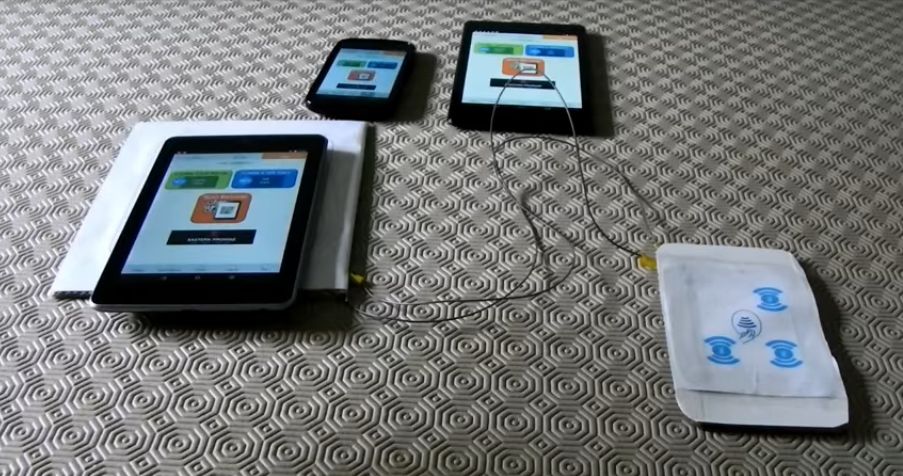
An NFC tag is a miniature device in the form of a chip that can be attached almost anywhere: from the phone to being inserted under the skin!
We will not use such radical methods, but it is worth noting that contacts, settings, a URL and other data and commands can be placed on the chip. Метку способны поддерживать все гаджеты.
Для того, чтобы считать данные с такого прибора, нужно найти специализированное официальное приложение в Google Play и далее, после установки, вы сможете дать метке различные команды для исполнения.
Как пользоваться
Владельцы аппаратов с ОС Андроид могут рассчитывать на такое применение NFC:
- передача данных с одного устройства на другое: файлы, ссылки на веб-страницы и приложения;
- считывание и создание NFC-меток;
- оплата покупок касанием к платежному терминалу;
- снятие наличных средств с карты в банкоматах.
Айфоны сильно ограничивают работу НФС: в iPhone 6, 6s, 7 этот чип работает только на оплату покупок касанием. Следующие модели могут уже не только оплачивать товары, но и считывать метки, остальное пока недоступно.
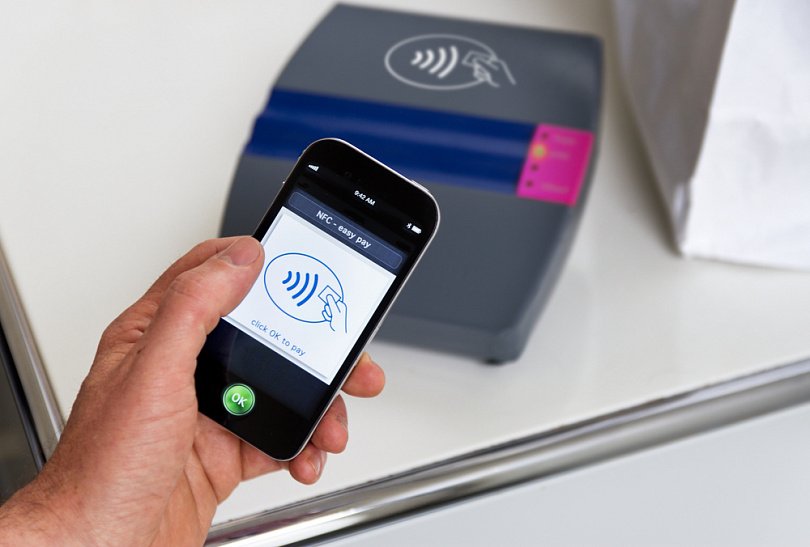
В передаче данных посредством NFC могут участвовать устройства, которые поддерживают такую функцию. Минимальная версия Android на обоих устройствах — 4.0. Для передачи информации открывается нужный файл или ссылка, устройства подносятся друг к другу таким образом, чтобы чипы NFC располагались рядом.
Таким способом можно передавать сведения: контакты, пароли или ключи, координаты GPS или маршруты, мультимедиа. Но следует учитывать, что скорость передачи NFC равна 400 мбит/сек и большеразмерные файлы передавать придется долго.
Для меток
NFC-метки — инструмент, облегчающий бытовые действия. С помощью меток пользователь может:
- запустить и активировать будильник, календарь и другое приложение на смартфоне;
- считать информацию с заранее запрограммированной метки.
Для чтения некоторых меток на смартфоне устанавливается специальное приложение. Транспортные приложения сообщают о количестве поездок, суммах на проездном и другую информацию, а приложения магазинов показывают сведения о товаре.
Для считывания NFC-меток смартфон оснащается на заводе-изготовителе NFC-чипом. Для Android ограничений нет, а iOS разрешает это только в iPhone 8 и выше.
Телефоны с Android могут не только считывать информацию с меток, но и программировать. Для этого пользователь устанавливает на телефон специальную программу, приобретает NFC-метку в магазине и программирует датчик на выполнение нужного действия.
Для оплаты
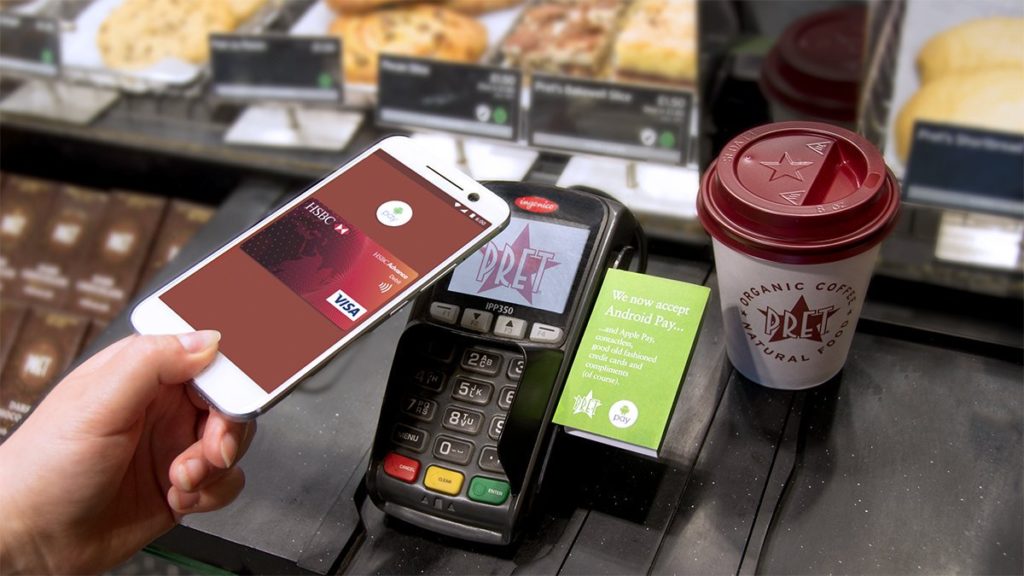
Платежи касанием — это распространенный способ оплаты в магазинах. В этом случае смартфон используется вместо карточки, в качестве платежного средства.
Для оплаты должны выполняться следующие условия:
- включенная функция NFC;
- приложение для оплаты: Apple Pay, Samsung Pay, Google Pay или банковские программы;
- карточка, подключенная в этом приложении.
Как пользоваться NFC в телефоне для оплаты:
- кассир пробивает сумму на терминале;
- покупатель выбирает карту и прикладывает телефон к считывающему устройству;
- деньги списываются с карты автоматически.

Для клиента важно, чтобы приложение, использующееся для оплаты, было надежно защищено от постороннего вмешательства. Некоторые программы требуют перед оплатой введение защитных паролей, отпечатка пальца. Эти меры помогают избежать несанкционированного списания средств.
Проверяем девайс на наличие NFC
Захотели попробовать технологию на практике, но не знаете, есть ли такая возможность именно на вашем устройстве? Давайте проверим.
Для этого аккуратно открываем заднюю крышку смартфона или планшета, в ситуации, если она может отодвигаться без повреждения и осматриваем аккумулятор гаджета.
При присутствии разработки NFC вы увидите эту аббревиатуру именно там. Если крышка телефона/планшета не снимается, то соответствующий значок или аббревиатура будут располагаться на внешней стороне.
Если вы по какой-то причине не желаете или не можете снять крышку, убедиться в наличии такого способа коммуникации вы можете в настройках девайса.
Найдите вкладку «Беспроводные сети», затем «Ещё…» и если NFC доступно на устройстве, то там обязательно будет соответствующий пункт.
Активация NFC

В случае, если вы его обнаружили на вашем устройстве, необходимо активировать и доступ к технологии NFC. You can do it like this:
- go to the “Settings” section and then “Wireless networks”, “More …”, where earlier you could make sure that NFC is available;
- confirm by clicking on the item “Allow data exchange when combining {amp}gt; device name {amp}gt; with another”;
- Android Beam is immediately activated on an Android smartphone. If this does not happen, click on it and select “Yes” so as not to disrupt the system;
NFC communication
The technology can also be used to transfer files.
To transfer data, you need to do the following steps:
- make sure that you have completed the activation of NFC and Android Beam;
- unlock the device, exit “sleep mode”;
- check device detection with each other;
- connect;
- transfer data between devices;
- a specific beep will sound at the end.
Advantages and disadvantages of NFC
The main advantages are:
- low price;
- small dimensions of the device;
- high transfer rate;
- support on almost all mobile devices.
It is worth highlighting the cons:
- relatively small range;
- Not all devices are equipped with an NFC chip.
So, thanks to these notes, you have learned quick and easy ways to check your device for the ability to transmit information and interact with other technical means using Near Field Communication. By following the simple instructions in this article, you will also be able to find out for yourself if your smartphone has this technology, you will be able to integrate NFC into your phone and transfer the necessary files at high speed.