 NFC Expert
 Samsung Pay: what is this program
Samsung Pay is a mobile contactless payment service developed by Samsung Electronics and used on Samsung phones. The service allows users to pay for purchases using mobile phones and smart watches.
One of the main differences between Samsung Pay and its competitors is that it supports not only NFC payments, but also electromagnetic transfer technology (MST) payments. This allows you to pay even on older terms that only support magnetic tape cards.
Magnetic Secure Transmission or Magnetic Secure Transmission (MST) technology transmits payment card information directly into the plastic card slot. This tricks the terminal into thinking that a real card has been swiped.
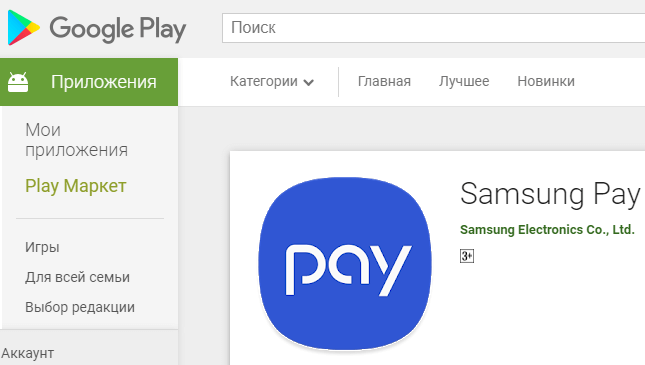
An application of the same name is used to provide the Samsung Pay service.
Which phone models are supported by Samsung Pay
Unlike Google Pay, which works on any modern smartphone with NFC, Samsung Pay payment service is available only to users of Samsung smartphones. At the same time, only relatively recent models are supported. Below we provide a complete list of devices on which you can use this service.
| Galaxy S10e (SM-G970F) Galaxy S10 (SM-G973F) Galaxy S10 (SM-G975F) Galaxy S9 (SM-G960F) Galaxy S9 (SM-G965F) Galaxy S8 (SM-G950F) Galaxy S8 (SM-G955F) Galaxy S7 edge (SM-G935F) Galaxy S7 (SM-G930F) Galaxy S6 Edge (SM-G928F) Galaxy S6 (SM-G920F) – NFC only Galaxy S6 Edge (SM-G925) – NFC only | Galaxy Note9 (SM-N960F) Galaxy Note8 (SM-N950F) Galaxy Note5 (SM-N920C) Galaxy A70 (SM-A705F) Galaxy A50 128 GB (SM-A505FM) Galaxy A50 64 GB (SM-A505FN) – NFC only Galaxy A40 (SM-A405F) Galaxy A30 (SM-A305F) – NFC only Galaxy A20 (SM-A205F) – NFC only Galaxy A9 2018 (SM-A920F) – NFC only Galaxy A7 2018 (SM-A750FN) – NFC only Galaxy A8 (SM-A530F) Galaxy A8 (SM-A730F) |
| Galaxy A6 (SM-A600F) – NFC only Galaxy A6 (SM-A605F) – NFC only Galaxy A7 2017 (SM-A720F) Galaxy A5 2017 (SM-A520F) Galaxy A3 2017 (SM-A320F) Galaxy A7 2016 (SM-A710F) Galaxy A5 2016 (SM-A510F) Galaxy J6 (SM-J610FN) – NFC only Galaxy J4 (SM-J415F) – NFC only | Galaxy J7 2017 (SM-J730F) Galaxy J5 2017 (SM-J530F) Gear S3 classic (SM-R770) | frontier (SM-R760) Gear Sport (SM-R600) – NFC only Galaxy Watch (SM-R800N, SM-R810N) – NFC only Galaxy Watch Active (SM-R500) – NFC only |
Also note that Samsung Pay will not work on rooted devices. In this case, restoring the standard firmware will not help. Rooted devices are permanently unable to use Samsung Pay.
In order for the Samsung Pay contactless payment service to work, it must be supported not only by the phone, but also by the user’s bank. At the moment, the following payment cards can be connected to the service:
- Alfa-Bank (MasterCard and Visa);
- Tinkoff Bank (MasterCard and Visa);
- VTB24 (MasterCard and Visa);
- Rocketbank and Tochka (MasterCard);
- Yandex (MasterCard);
- Raiffeisenbank (MasterCard and Visa);
- MTS-Bank (MasterCard and Visa);
- Sberbank (MasterCard and Visa, except for the Electron series);
- Bank Saint Petersburg (MasterCard);
- Russian Standard (MasterCard);
- “Opening” (MasterCard and Visa);
- BINBANK (MDM Bank cards)

In the future, the list of banks and cards will expand. Contact your bank support for detailed information about the support of this service.
Before downloading this application to your device, please note that it will work with the following models:
- Galaxy A5 (2016);
- Galaxy A7 (2016);
- Galaxy S 7 edge;
- Galaxy S 6 edge ;
- Galaxy S6 Edge (NFC contactless payment available since November 2016);
- Galaxy S 7;
- Galaxy S6 (NFC only since November 2016);
- Galaxy Note 5.
In the event that for some reason a Samsung smartphone does not support this payment service, you can do the following:
- Visit Samsung official website page .
- Select your device model from the list.

- Then you need to enter the valid (e-mail) to which the Samsung Account is linked.

- Next, you need to enter your unique IMEI in the form.
Important: In order to find out your IMEI, dial the following combination *#06# on the keyboard of your device, after which the IMEI will be displayed on the screen. In the event that 2 SIM cards are installed in the smartphone, 2 IMEIs will appear on the screen. You need to enter IMEI1 in the form. You cannot enter any numbers or the “/” character after it.

- When all the fields are filled, you should put two checkmarks like on this screenshot.
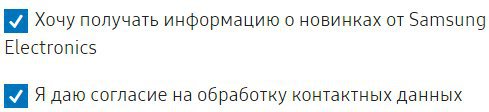
- And the last thing to do is to click on the “Submit” button.

After some time, you will receive a notification when exactly the service will be available on your device.
Before adding a card to the Samsung Pay payment service, it is important to make sure that this system is supported by the bank and the card.
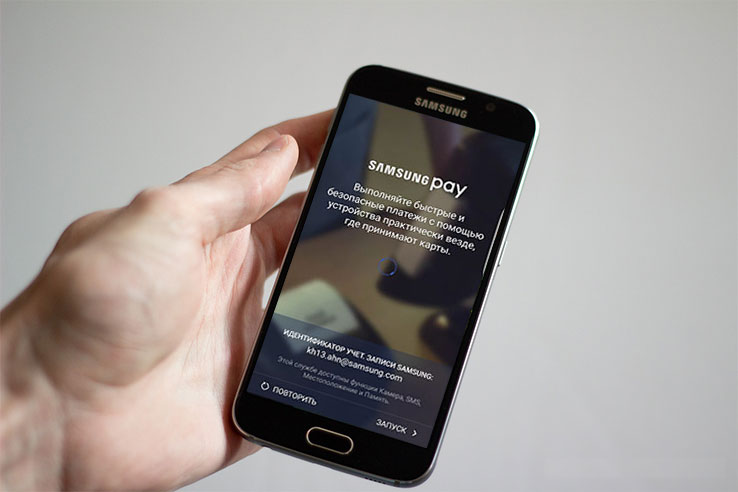
- Go to the application on your device and click “Start”.
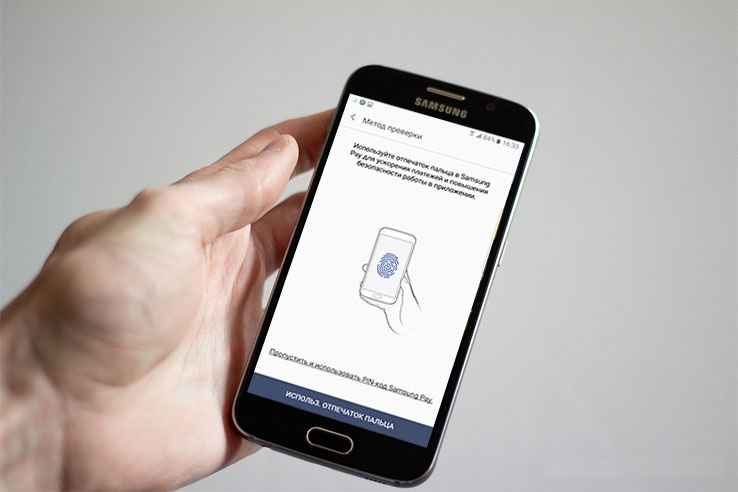
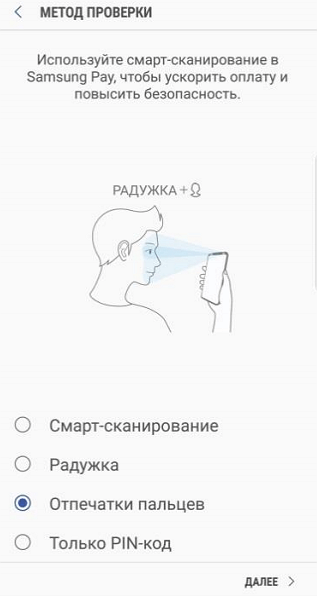
- Next, you need to set a pin code or fingerprint. In the future, with their help it will be possible to confirm all purchases.
- In the case when a card is added for the first time, you need to click on its symbol. If this is not the first map added, then click “Add”.
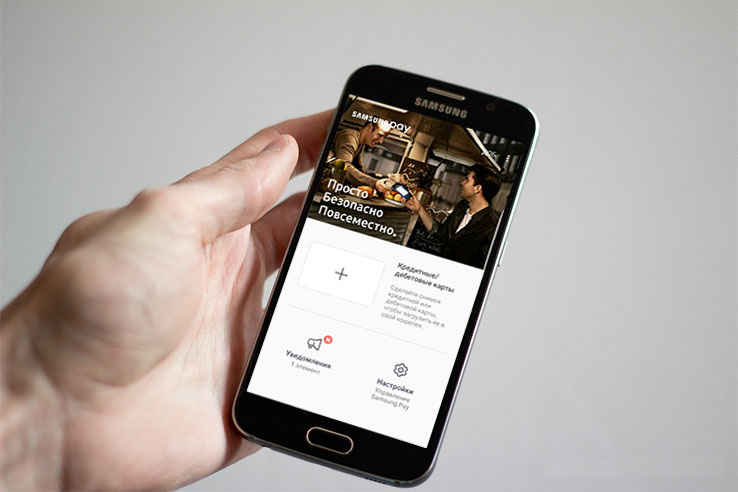
- Card data can be photographed or entered manually. Then click “Next”.
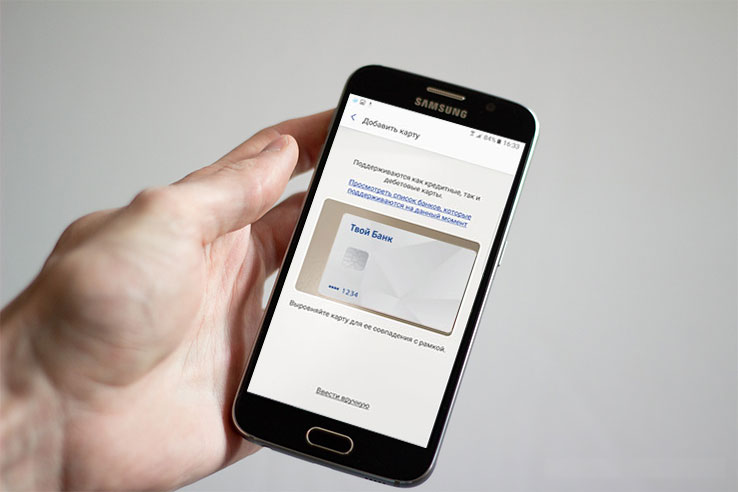
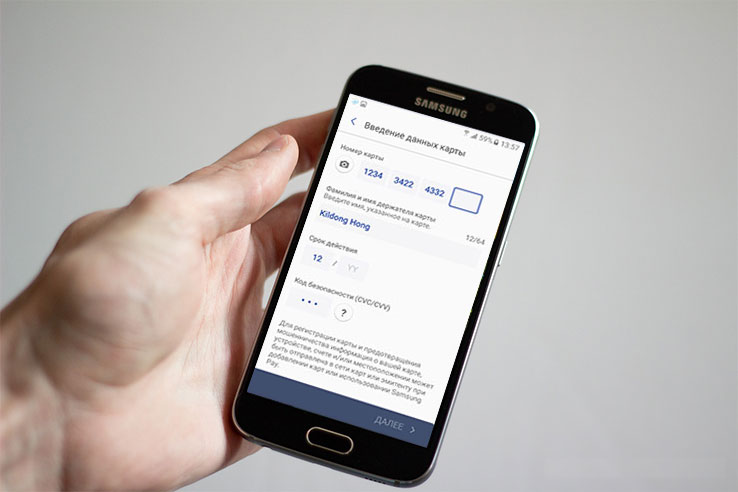
- Next, you need to accept the agreements of the bank and the payment service.
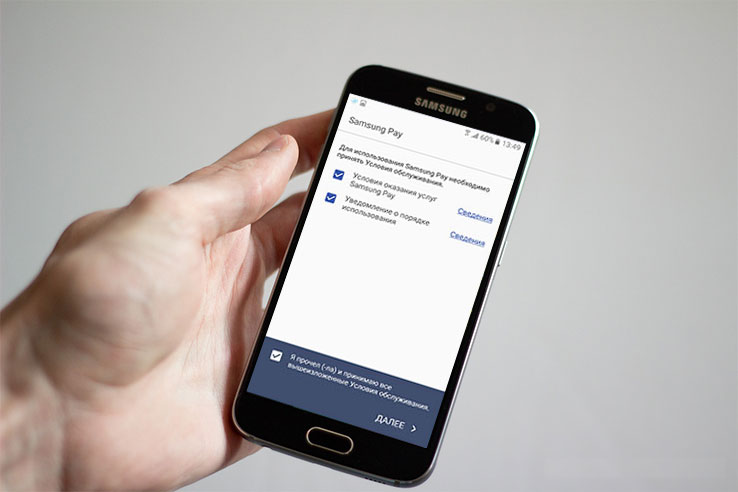
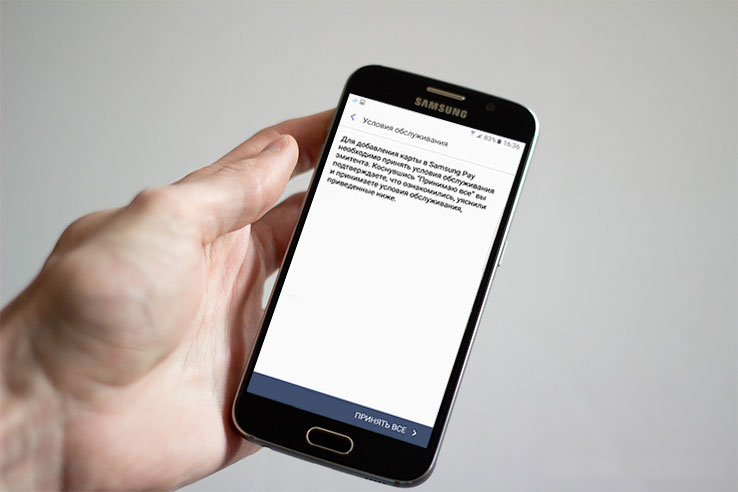
- After the agreement, an SMS message with a one-time number will be sent to the smartphone to confirm registration.
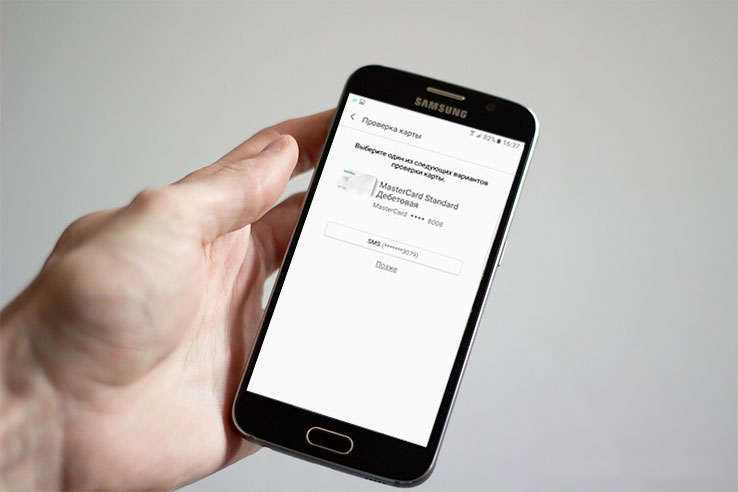
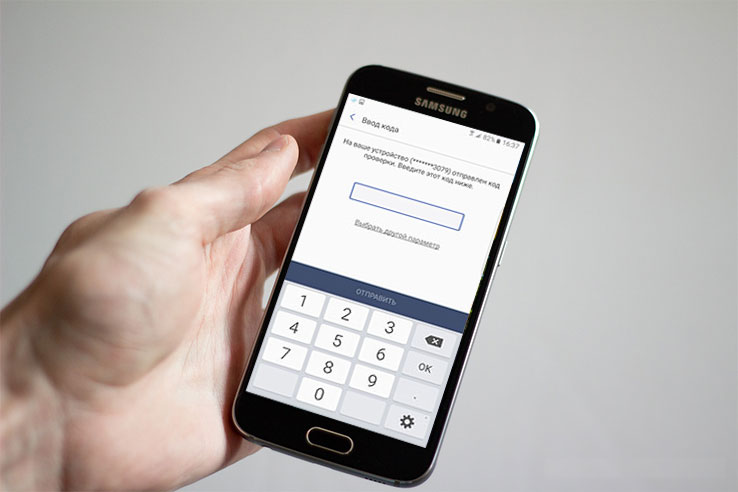
- The received combination of numbers from the SMS message must be entered in a special field, and then click “Send”.
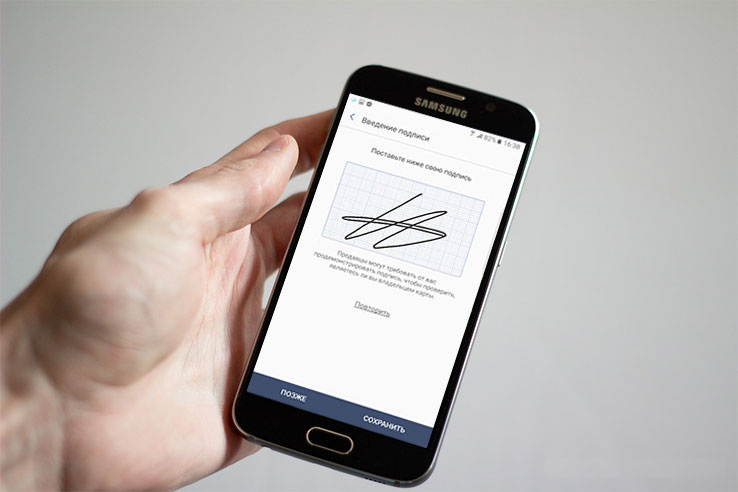
- Using a stylus or a finger, you need to put an electronic signature, then click “Done”. An electronic signature may be required if the cashier wants to compare it on a check and a card.
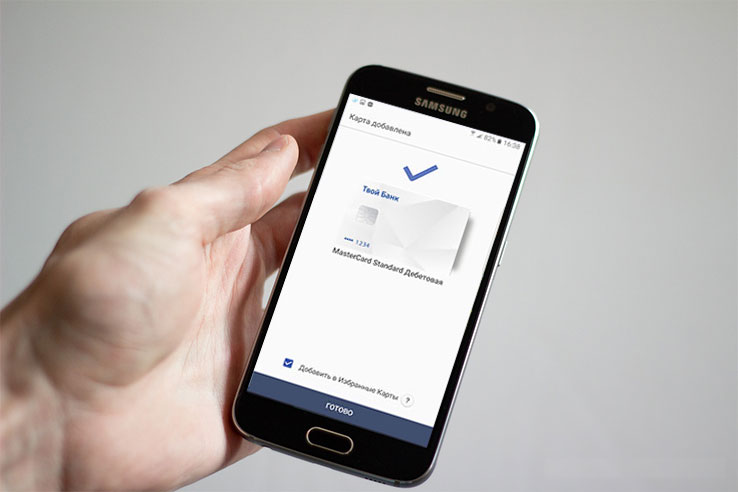
- After that, the card will be added to the payment service from Samsung. By the way, only 10 bank cards can be added to one mobile device.
How Samsung Pay works
Once everything is set up, Samsung Pay is ready to go. To pay for purchases, you need to tell the cashier that you will pay with a card, and then swipe up from the bottom of the screen. This gesture will automatically launch the Samsung Pay app and get it ready to go.

After launching the application, you will need to log in using one of the configured methods. This could be an iris scan, a fingerprint check, or a PIN code. After authorization, the phone must be brought to the payment terminal.
To pay using NFC technology, the phone must be brought to the top of the terminal.
If the terminal does not support contactless payment using NFC, then the phone must be brought to the magnetic stripe reader (on the right side of the terminal). In this case, the payment will be made using Samsung MST (Magnetic Secure Transmission) technology, which emulates the magnetic stripe of a payment card.
After that, the terminal should fix the payment, and a corresponding message should appear on the phone.
At the first stage, for the correct operation of the payment system, you need to register and create a Samsung account. Then you need to create and verify a fingerprint. The next step is to create a PIN code for Samsung Pay.
Then you need to add your bank card. This can be done by scanning with a camera or by entering the data yourself. The bank must send confirmation in the form of an SMS message with a one-time password. In the window that appears, you need to put your signature.
Full card will be registered in 10 minutes.
The last 4 digits should appear in the card information, as well as the 4-digit token number. Everything, now, using a mobile device, you can pay for purchases in stores.

After selecting a card that has money on it, in order for the transaction to be successful, you need to put your finger on the “fingerprint” icon or enter a pin code for the Samsung Pay service. Next, bring your smartphone to the terminal to pay. If the purchase amount exceeds one thousand rubles, you will need to enter the PIN code of the bank card.
This service works with Mastercard cards of the following banks:
- VTB24;
- ALFA-BANK;
- Raiffeisenbank;
- MTS-Bank;
- Russian Standard Bank;
- Yandex payment system.
Later the service will be available in other banks. Recall that earlier Sberbank of Russia reported that it plans to soon connect the Samsung Pay service.
So far, the application works with Mastercard cards. Support for Visa cards will be implemented later. The payment service supports work with no more than 10 cards.
How to set up Samsung Pay
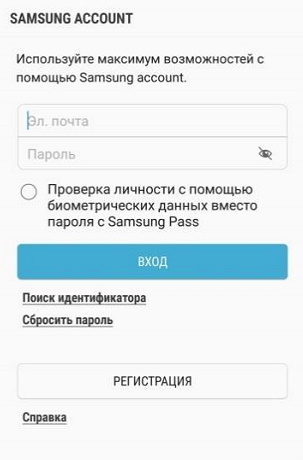
For Samsung Pay to work, you need to set it up first. To do this, launch the Samsung Pay app, sign in with your Samsung account, and agree to the terms of use.
After that, set up a convenient way for you to unlock your phone. Only reliable unlock methods can be used with Samsung Pay. For example, an iris scan or a fingerprint.
The app will also ask you to enter a separate PIN code for Samsung Pay. This PIN will only be used in this app and is different from the main PIN that is used to unlock your phone.
This will take you to the main interface of the Samsung Pay app. Here you need to go to the “Payment” section and click on the “Add card” button.
To add a card, simply scan it with your phone’s camera.
If there are difficulties with scanning, you can click on the “Enter manually” button and fill in the card data yourself.
After entering the payment card data, the application will require you to perform verification using an SMS message. Your phone will receive an SMS with a code that you will need to enter in a special field.
The last step in setting up Samsung Pay is to enter your signature in a special field on the screen.
This completes the setting. Wait about 10 minutes for your card to successfully register with Samsung Pay. After that, the phone can be used to pay for purchases.
Samsung Pay Security
Your card details are not stored on your device or Samsung servers. Instead of a real card number when paying
uses a special digital code generated randomly – a token.
Each transaction is necessarily confirmed by your fingerprint, iris or application PIN code —
only you can make purchases.
Built-in Samsung Knox security ensures data protection regardless of the operating system on
device, and blocks access to Samsung Pay data if malware, root rights are detected, or
unofficial firmware.
No. Samsung Pay does not have access to a bank account.
Your card information is not stored in Samsung Pay either on your device or on Samsung servers. To commit
transactions only use card token data.
Application PIN cannot be recovered for security reasons. If you forget your Samsung Pay PIN:
- Clear the data of the “Samsung Pay” app. All payment data will be deleted from the smartphone.
- Re-register for Samsung Pay.
- Re-add your payment cards (for this you will need to re-verify the card using the code from the SMS
from the Bank).
If the device is lost or stolen, payment information will be protected: For each
Samsung Pay transactions require user verification by fingerprint, iris, or
Application PIN. You can also block or delete all data from the device (including data
Samsung Pay) via Samsung service
Find My Mobile*.
*On the device, the “Remote control” function must be enabled beforehand (Settings – Display
locks and security – Find my phone).
No. If you reset the settings, all data from Samsung Pay will be deleted.
No. Samsung Pay is a payment service that must securely protect payment data. Embedded system
Samsung Knox security ensures data protection regardless of the operating system on the device, and
blocks access to Samsung Pay data when malware, root access, or unofficial firmware is detected.
If you still think that using the payment service is not safe and scammers can somehow use it to withdraw funds, we hasten to dissuade you from this.
The fact is that there are three systems that protect personal information at once: tokenization, fingerprint verification and Samsung KNOX.
Tokenization
As soon as payment for purchases is made, the system randomly generates a token (a special digital code). At the same time, the user’s personal information does not appear anywhere during the transaction.
This or that payment transaction cannot go through without your fingerprint. So, even if the smartphone is lost, it will be impossible for the finder to pay for purchases from someone else’s smartphone.
Samsung KNOX
https://www.youtube.com/watch?v=itFrgJeQwhM
The security system inside the device is designed in such a way that it can prevent any third-party hacker attack. It continuously monitors smartphone vulnerabilities. Even if the smartphone can be infected with malware, the card data will be securely encrypted inside the Samsung KNOX container.