 NFC Expert
 Samsung Pay: what is this program
Samsung Pay is a mobile contactless payment service developed by Samsung Electronics and used on Samsung phones. The service allows users to pay for purchases using mobile phones and smart watches.
One of the main differences between Samsung Pay and its competitors is that it supports not only NFC payments, but also electromagnetic transfer technology (MST) payments. This allows you to pay even on older terms that only support magnetic tape cards.
https://www.youtube.com/watch?v=https:gaming.youtube.comvladimirpolnikov
Magnetic Secure Transmission or Magnetic Secure Transmission (MST) technology transmits payment card information directly into the plastic card slot. This tricks the terminal into thinking that a real card has been swiped.
An application of the same name is used to provide the Samsung Pay service.
Adding a card
In order for the Samsung Pay contactless payment service to work, it must be supported not only by the phone, but also by the user’s bank. At the moment, the following payment cards can be connected to the service:
- Alfa-Bank (MasterCard and Visa);
- Tinkoff Bank (MasterCard and Visa);
- VTB24 (MasterCard and Visa);
- Rocketbank and Tochka (MasterCard);
- Yandex (MasterCard);
- Raiffeisenbank (MasterCard and Visa);
- MTS-Bank (MasterCard and Visa);
- Sberbank (MasterCard and Visa, except Electron series);
- Bank Saint Petersburg (MasterCard);
- Russian Standard (MasterCard);
- “Opening” (MasterCard and Visa);
- BINBANK (MDM Bank cards)
In the future, the list of banks and cards will expand. Contact your bank support for detailed information about the support of this service.
Even the process of adding cards is implemented differently in payment apps from Samsung and Google. The first offers to scan the card using the main camera of the device and take information such as the number and expiration date from it. The rest of the data (authentication code, name of the owner in Latin and others) Samsung Pay requires you to enter manually.
In the case of Android Pay, the user needs to manually enter all the information on the card. There are no features that make it a little easier to add it. This applies not only to depositing debit and credit cards, but also plastic with gift offers, discounts and bonuses. But the service from Google allows you to work with an unlimited number of cards, while the system from Samsung – only ten.
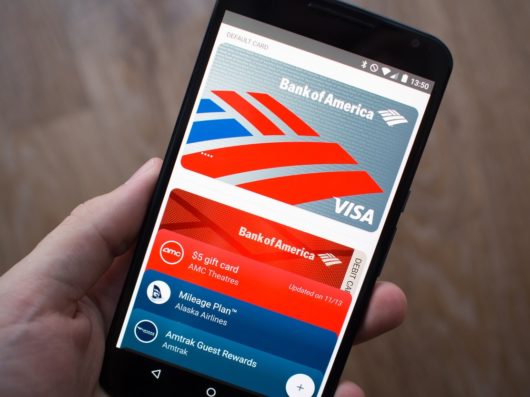
You can add an unlimited number of cards to Android Pay
Making a payment
The Google payment service provides the opportunity to pay for purchases and services only in places equipped with terminals that support contactless payment. Typically, such points can be identified by stickers with the corresponding pictograms, by the presence of diodes on payment devices, or by a message on their displays prompting you to present a card.
In addition to simply bringing the smartphone to the terminal, as is the case with plastic cards, in order to successfully complete a transaction through Android Pay and Samsung Pay, users of galaxy devices need to perform a number of additional actions. When using the first of the mentioned services, it is enough to activate the screen of the device and hold it near the terminal for several seconds.
But this is in the case of paying small amounts up to a thousand rubles. The maximum allowable number of such operations is three per day. To confirm subsequent payments, you will have to unlock the device and use a fingerprint or password. In some cases, you may also need to enter the PIN code of the card at the terminal itself.
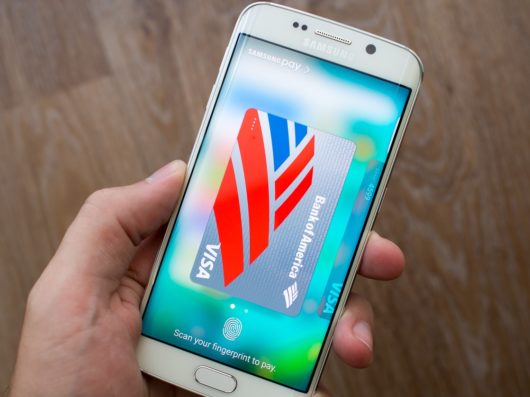
Making payments in Samsung Pay must be confirmed with a fingerprint or password
Which phones support Samsung Pay
Unlike Google Pay, which works on any modern smartphone with NFC, Samsung Pay payment service is available only to users of Samsung smartphones. At the same time, only relatively recent models are supported. Below we provide a complete list of devices on which you can use this service.
| Galaxy S10e (SM-G970F) Galaxy S10 (SM-G973F) Galaxy S10 (SM-G975F) Galaxy S9 (SM-G960F) Galaxy S9 (SM-G965F) Galaxy S8 (SM-G950F) Galaxy S8 (SM-G955F) Galaxy S7 edge (SM-G935F) Galaxy S7 (SM-G930F) Galaxy S6 Edge (SM-G928F) Galaxy S6 (SM-G920F) — только NFC Galaxy S6 Edge (SM-G925) — только NFC | Galaxy Note9 (SM-N960F) Galaxy Note8 (SM-N950F) Galaxy Note5 (SM-N920C) Galaxy A70 (SM-A705F) Galaxy A50 128 Гб (SM-A505FM) Galaxy A50 64 Гб (SM-A505FN) — только NFC Galaxy A40 (SM-A405F) Galaxy A30 (SM-A305F) — только NFC Galaxy A20 (SM-A205F) — только NFC Galaxy A9 2018 (SM-A920F) — только NFC Galaxy A7 2018 (SM-A750FN) — только NFC Galaxy A8 (SM-A530F) Galaxy A8 (SM-A730F) |
| Galaxy A6 (SM-A600F) – NFC only Galaxy A6 (SM-A605F) — только NFC Galaxy A7 2017 (SM-A720F) Galaxy A5 2017 (SM-A520F) Galaxy A3 2017 (SM-A320F) Galaxy A7 2016 (SM-A710F) Galaxy A5 2016 (SM-A510F) Galaxy J6 (SM-J610FN) — только NFC Galaxy J4 (SM-J415F) — только NFC | Galaxy J7 2017 (SM-J730F) Galaxy J5 2017 (SM-J530F) Gear S3 classic (SM-R770) | frontier (SM-R760) Gear Sport (SM-R600) — только NFC Galaxy Watch (SM-R800N, SM-R810N) — только NFC Galaxy Watch Active (SM-R500) — только NFC |
Также нужно отметить, что Samsung Pay не будет работать на устройствах, где пользователь получил root-права. При этом восстановление стандартной прошивки не поможет. Устройства с root-правами навсегда теряют возможность работать с Samsung Pay.
Работа в роуминге и без интернета
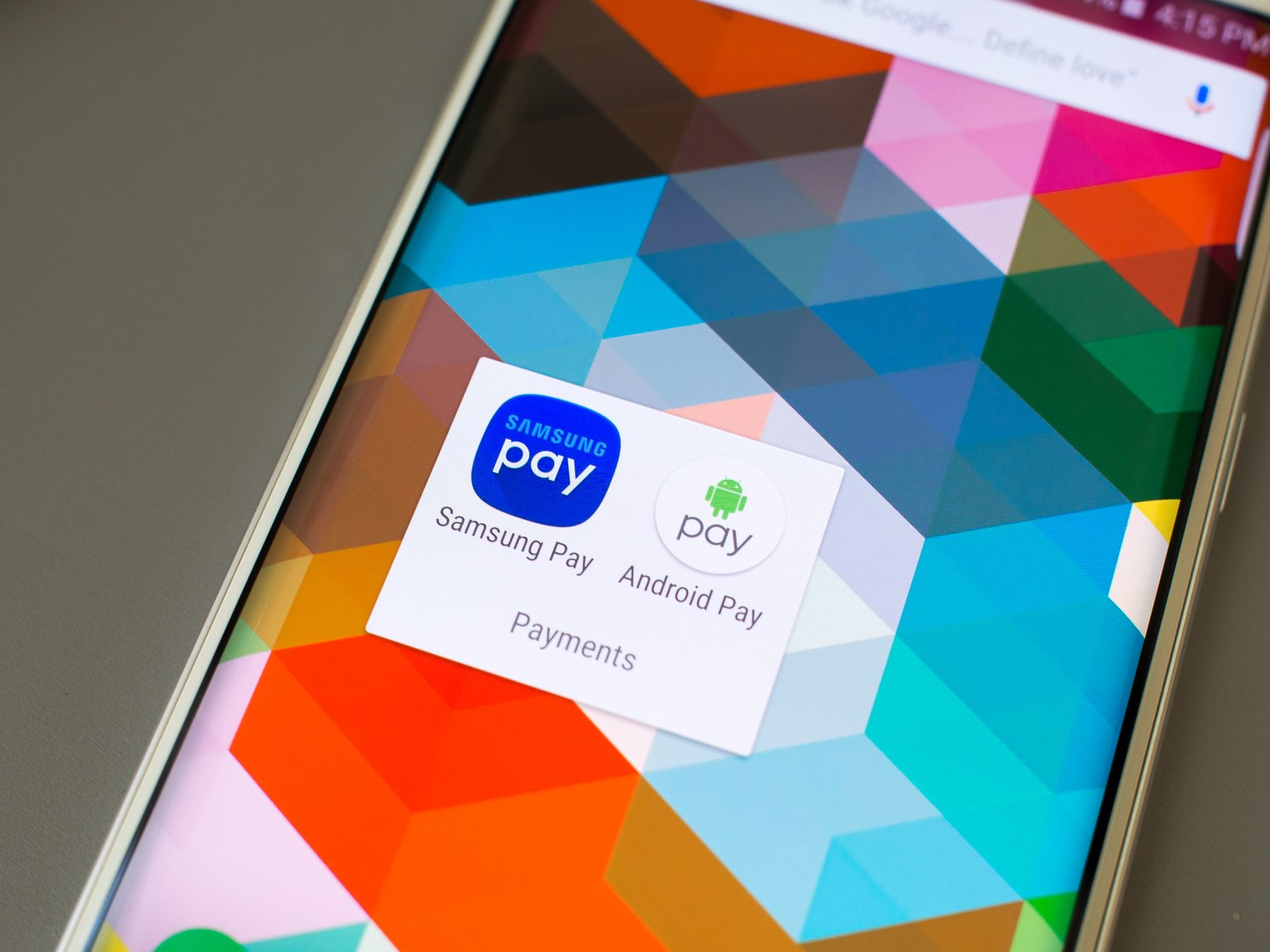
Поскольку Android Pay хранит все данные пользователей не на смартфонах, а на сервере, который ещё и генерирует уникальные токены для проведения платежей, этой системе периодически нужно подключаться к интернету. Без него она работает не в полной мере и разрешает выполнять не более шести транзакций в ограниченное время.
Samsung Pay держит платёжную информацию на специальном чипе внутри каждого поддерживаемого устройства. Все данные хранятся в зашифрованном виде, поэтому никто из посторонних не может завладеть ею. Такие привилегии имеются только у сервиса. В нужный момент он обращается к защищённому хранилищу, подгружает информацию и выполняет операции по переводу денежных средств. Что интересно, делается всё это без интернет-соединения.
После того как все настроено, сервис Samsung Pay готов к работе. Для оплаты покупок нужно сказать кассиру, что вы будете оплачивать с помощью карты, после чего провести пальцем вверх от нижнего края экрана. Этот жест автоматически запустит приложение Samsung Pay и подготовит его к работе.
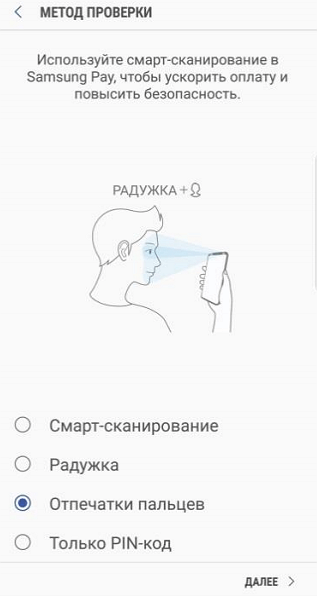
После запуска приложения нужно будет авторизоваться одним из настроенных способов. Это может быть сканирование радужки глаза, проверка отпечатка или ввод PIN-кода. После авторизации телефон нужно поднести платежному терминалу.
Для оплаты при помощи технологии NFC телефон нужно подносить к верхней части терминала.
Если терминал не поддерживает бесконтактную оплату с помощью NFC, то телефон нужно подносить к считывателю магнитной полосы (в правой части терминала). В этом случае оплата будет выполнена с использованием технологии Samsung MST (Magnetic Secure Transmission), которая эмулирует работу магнитной полосы платежной карты.
После этого терминал должен зафиксировать оплату, а на телефоне должно появиться соответствующее сообщение.
Как настроить Samsung Pay
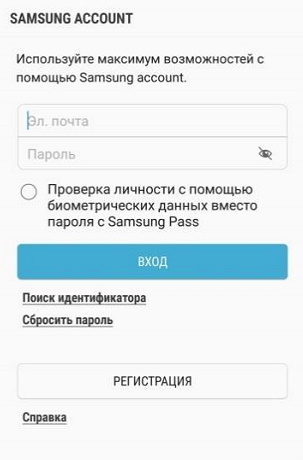
Чтобы оплата через Samsung Pay заработала, ее нужно предварительно настроить. Для этого запустите приложение Samsung Pay, войдите по вашей учетной записи Samsung и согласитесь с условиями использования.
После этого настройте удобный для вас способ разблокировки телефона. Для работы с сервисом Samsung Pay могут использоваться только надежный способы разблокировки. Например, сканирование радужки глаза или отпечаток пальца.
Также приложение попросит ввести отдельный PIN-код для Samsung Pay. Данный PIN-код будет использоваться только в этом приложении и отличается от основного PIN-кода, который используется для разблокировки телефона.
После этого вы попадете в основной интерфейс приложения Samsung Pay. Здесь нужно перейти в раздел «Оплата» и нажать на кнопку «Добавить карту».
Для добавления карты ее достаточно просто отсканировать при помощи камеры телефона.
If there are difficulties with scanning, you can click on the “Enter manually” button and fill in the card data yourself.
After entering the payment card data, the application will require you to complete the verification using an SMS message. Your phone will receive an SMS with a code that you will need to enter in a special field.
The last step in setting up Samsung Pay is to enter your signature in a special field on the screen.
This completes the setting. Wait about 10 minutes for your card to successfully register with Samsung Pay. After that, the phone can be used to pay for purchases.
Supported devices
Samsung Pay is available on a limited number of Samsung Galaxy devices:
- Note8,
- Note5,
- S8 ,
- S8,
- S7 Edge,
- S7,
- A7 (2016, 2017),
- A5 (2016, 2017),
- A3 (2017),
- J7 (2017),
- J5 (2017),
- S6 Edge ,
- S6 Edge,
- S6.
For the last two models, the application of this service comes only with the ability to conduct money transactions via NFC. In addition to mobile devices, wearable electronics such as Samsung Gear S2, S3 and Sport also have support for the payment system of the South Korean company. But, as is the case with smartphones, not all of these have MST. More specifically, this technology is not available in Gear Sport watches.
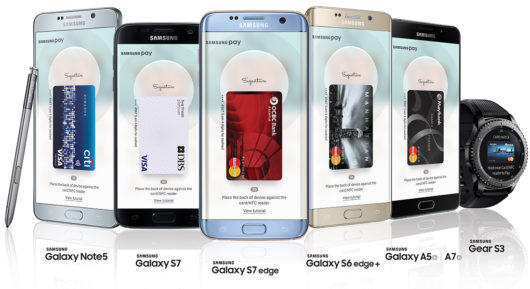
Devices that support Samsung Pay
With Android Pay, the situation is more rosy, since for its full operation, the device must have only NFC and run an Android system of at least version 4.4 or Android Wear 2.0 in the case of a smart watch. The presence of special chips with secure storage is not required. Therefore, this service is easy to start even on the flagship of 2013 – Samsung Galaxy S4.
https://www.youtube.com/watch?v=ytadvertiseru
Despite the fact that Samsung Pay is the leader in almost all scenarios considered, Android Pay captivates with an extended list of supported devices. Only you can decide which payment service to use. We emphasize that for their operation, your devices must be running official firmware without traces of rooting and modifications.