 NFC Expert
 How to use Samsung Pay?
Samsung Pay is a modern and convenient contactless payment method. With it, the user can pay for the purchase in any store where an appropriate payment terminal is installed and bank cards are accepted. The main advantage of such a service is that NFC technology is used, as well as MST. Thanks to this symbiosis, the subscriber has the opportunity to make payment transactions even with terminals that read credit card magnetic stripes.
Samsung has created its own technology, with the help of which a mobile device generates an individual magnetic field that imitates a simple bank card. This means that with one mobile phone in their pocket, the consumer can complete any purchase without additional fees.
Paying by phone is quite simple, for this you need to perform a number of simple operations:
- Purchase a mobile device that supports this feature.
- Add your virtual card to the application.
- Select the required credit card from the list of previously added ones. This can be done in the main utility in the corresponding tab or from the list of favorites. Opens after swiping your finger from the bottom up on the smartphone screen. To set up a list of favorite cards, go to your phone settings. Here you can adjust the features of displaying credit cards on the main screen, as well as add the ones you need to the list.
- Pass authorization, to do this, enter a security password or scan your fingerprint and bring the device to the payment terminal.
- After that, you have thirty seconds left to complete the payment. After 20 seconds, the repeat icon will appear on the display. If you press it, the waiting time will increase by another 20 seconds.
- Done. Wait for a check from the terminal. The operation will be successful only if there are funds in the bank account.
When you first start the utility, it may swear and will not start working for a number of reasons that you can fix yourself. Possible failures:
- Be sure to update the firmware of your mobile device to the latest current version. Old Androids or self-made software do not support the service.
- For the function to work, create an account in the Samsung system, otherwise you will not be able to log in to the application.
- Keep in mind that contactless payment works only with certain models of smartphones, so check the compatibility of the utility with your phone in advance.
Sometimes breakdowns and problems cannot be solved on your own. For such cases, the manufacturer’s company has launched a hotline phone, technical support works around the clock and seven days a week. Dial 88005555555, wait for an answer from a specialist and ask a question. Sometimes the culprit of incorrect operation is the NFC chip itself, in which case you need to go to the service department and order a replacement.
We can summarize, Samsung Pay is a unique payment system. The user can make purchases in any store with any terminal, as well as use discount cards. The only negative is a small range of devices that support the function, but it will be replenished soon.
The Service is an electronic payment made through the company’s mobile devices. Most smartphones and tablets support this option.
The service appeared in August 2015, after a Korean manufacturer bought a small company LoopPay in February.
She developed and implemented a new opportunity for the banking industry. The novelty is as follows.
The program creates a virtual magnetic strip, which is used on electronic means of payment when paying by terminal.
The technology is called Magnetic Secure Transmission (MST). It creates an emulation of a magnetic field, as a result of which the terminal takes this virtual field for a magnetic strip and performs a reading operation.
MST is completely related to other NFC technology. Translated from English means “near field communication” (Near field communication). It appeared in 2004, but has not yet received proper distribution.
Thanks to the Samsung Pay service, NFC has become more popular, since contactless payment only works when NFC is enabled. The range is no more than 8 centimeters, which is the optimal value for paying by phone.
After the option began to be actively used in the Russian Federation, the vendor organized an advertising campaign in support of its new technology.
Many services and goods were much cheaper when paying through Samsung Pay.
For example, a ride on the Moscow metro was half the price if the client paid using contactless payment technology.
The contactless payment function is not supported by all Samsung smartphones. Earlier versions do not have this capability.
The list of the most popular models is as follows:
- Galaxy S8;
- Galaxy S7;
- Galaxy S6, but there are some restrictions;
- Galaxy A3;
- Galaxy S9;
- Galaxy A5.

The S6 series does not have built-in MST technology, which means that models in this category can only work with modern electronic payment readers.
Here is a short instruction on how to pay using the contactless payment system.
- The customer goes to the store’s checkout and waits for the employee to enter payment data into the terminal;
- After the cashier announces the final amount of the purchase, the owner of the smartphone swipes his index finger across the screen from the bottom up to activate the Samsung pay application;
- In the next step, the user brings the mobile device to the payment terminal, and waits until an inscription confirming the payment operation appears on the screen;
- The client puts the communicator in his pocket and takes the purchase.
Information about service centers can be obtained on the official website of the company.
By going to the site, the visitor indicates his device with which he had a problem.
Next, he chooses the option he needs and clicks on it with the left mouse button. A list of mobile devices will be displayed on the screen.
Search uses special filters. The visitor can choose which SCs he is interested in: direct from Samsung, partner authorized centers, or both.
Detailed information is provided for each company. Worth a five-star rating. The more stars, the more customers liked the SC.
Below is the official portal address and contact phone numbers for more information. Some service centers have recommended visiting hours.
There are two links at the very end of the line. By clicking on the first one, the client will be shown the location of the service center on a schematic map, and the second one will help to get directions using the Yandex. Cards”.
Take the opinions of mobile device owners about the contactless payment service from the Otzovik website.
How useful is Samsung Pay?
The service is convenient because you can pay by bank transfer using only your smartphone.
Phone owners no longer have to look for a bank card to pay through the terminal. You just need to activate the application and make a payment. The action will take no more than one minute.

Such a service will save time on shopping, you will no longer have to stand in lines waiting for the sellers to find change for the buyer. Payment is instant.
There is a function to save payments. All financial transactions that are made using Samsung Pay are stored in the application.
At any time, the owner of the communicator can open the history, and track the history of purchases.
The application can store an unlimited number of payment cards. Thus, the client can load all his cards into the program and no longer carry them with him.
What devices does Samsung Pay work on?
You can pay for a purchase with a smartphone if you have the following gadget models:
- Galaxy S7 edge
- Galaxy S6 edge
- Galaxy Note5
- Galaxy A5
- Galaxy A7
- As well as smart watch Samsung Gear s3
If you are a happy owner of one of these smartphones, then Samsung Pay is at your service. It remains only to update the firmware of the device to the latest version.
After updating the update, you should select the mode of adding “plastic” or take a photo of the card with automatic recognition of the digital code. The easiest option is to enter numbers manually.
Having filled in the fields with the name and surname, the expiration date and the verification three-digit code on the back of the credit card, we draw a personal signature with a finger in a special window, such as on the card. The smart gadget contacts the database of your bank, checking the relevance of the information. If the check is successful, the map appears on the screen. Its appearance is the same as in reality, including background images.
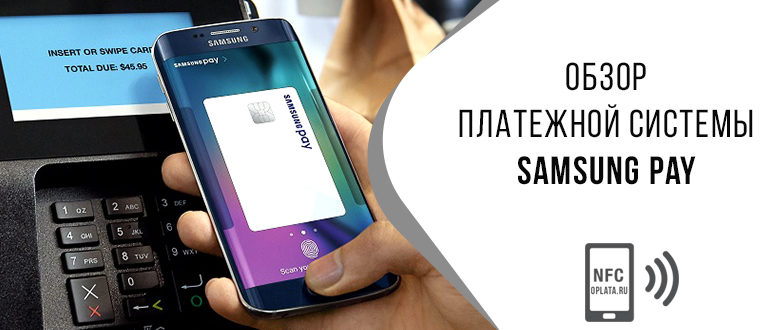
From now on, the virtual card is on alert, the edge of the “plastic” is visible at the bottom of the screen. You can call the card to pay for purchases with a swipe, from bottom to top. The service settings help to set a default credit card, if there are several of them, as well as a type of payment protection – a fingerprint or a pin code. It is safest to choose the first option.
A special module is built into the smartphone, which allows data transfer at a distance of several tenths of a meter. Allowing the purchase, you bring the gadget to the terminal, and that’s it. The further process is the business of the bank, you have nothing to delve into it. The main thing is that it is ultra-safe and extremely fast. A few fractions of a second – the purchase is made, you are happy to go home.
Samsung Pay is a mobile payment system of a Korean company. Its main feature is the ability to make payments through terminals equipped to interact with magnetic tape cards that are familiar to many. To do this, in modern Samsung smartphones that support working with the service, MST technology is implemented.
With its help, the phone generates an alternating current, thereby creating a field that can change dynamically. It operates approximately at a distance of 8 centimeters from the reader. At the same time, the terminal is sure that the payment is made with a conventional magnetic card, so there is no need to re-equip it.
The owner of a Samsung smartphone with service support adds credit card data to the application, which subsequently enters Samsung Knox and remains there in encrypted form. Before making a payment, he selects the desired card, gains access to it by providing his fingerprint or entering a PIN code, brings the device to the terminal and waits for the transaction to complete.
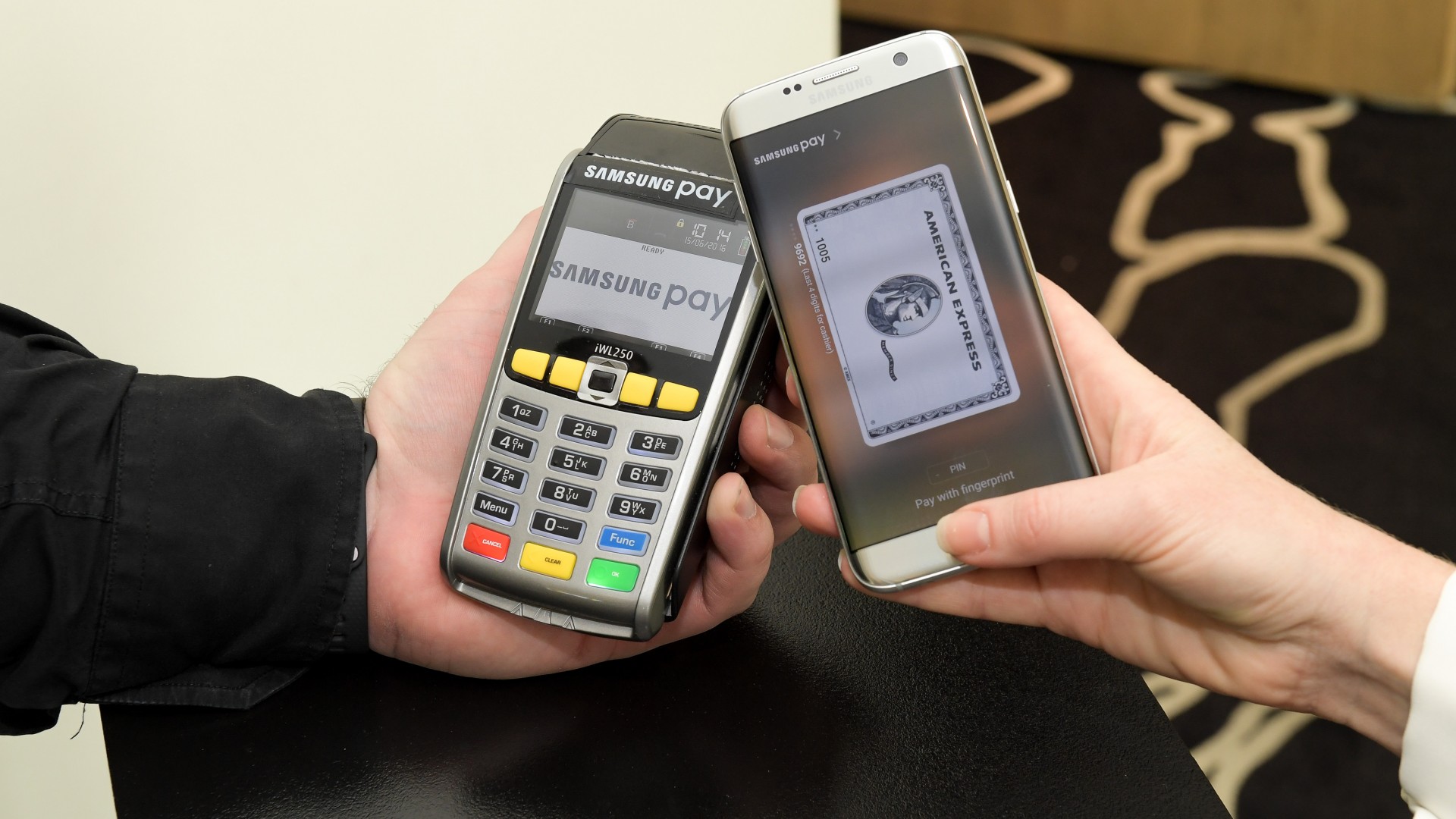
During the payment, the smartphone does not send the card data to the device for payment, but a 16-digit code called a token, so attackers will not be able to intercept them during the “communication” of the mobile device and the terminal. If they manage to get hold of the token, then they are unlikely to be able to do anything with it, since the system will immediately block it when reused.
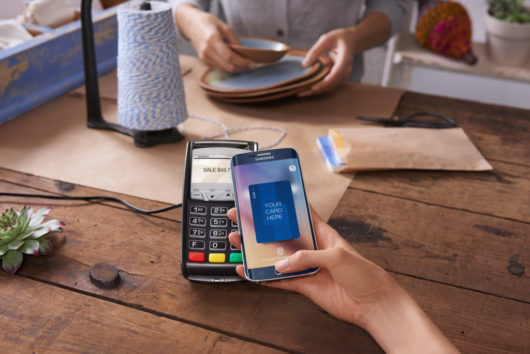
Example of making a payment using Samsung Pay
You can now pay with Samsung Pay on one of the following Samsung Galaxy models: S7, S7 Edge, A3(2017), A5(2016/2017), A7(2016/2017), Note 5, S6 Edge , S6 Edge and S6. Interestingly, on the last two devices, payment is made only using NFC technology. Versions of Samsung Galaxy A3 and A5 2015, as well as S5 and Note 4, the service is not available.
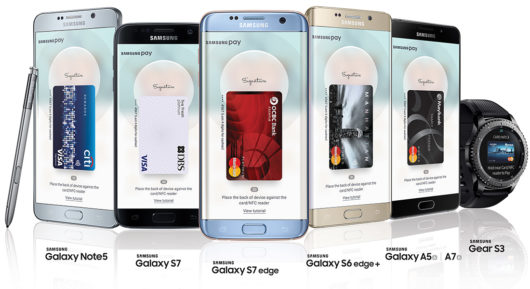
List of devices supporting Samsung Pay
Samsung provides full access to the payment system only to owners of its smartphones. Owners of mobile devices from other manufacturers cannot use it. At least for the reason that their firmware lacks Samsung Knox technology, which stores all credit card data in encrypted form.
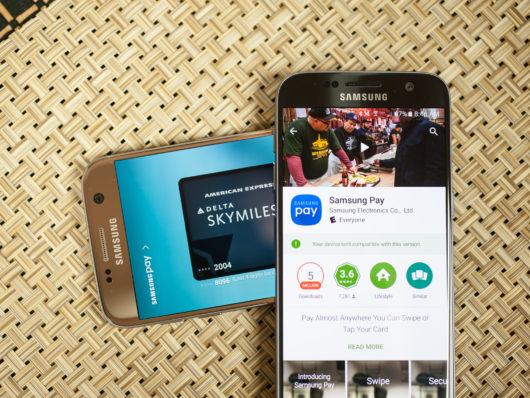
The Samsung Pay app is not available for devices without the updated firmware version and for smartphones from other manufacturers
There may be different nuances during the payment process. Here is some of them.
- If the total amount is more than 1000 rubles, the user will have to confirm the payment: put a finger on the sensor on the phone or enter a PIN code;
- From time to time, terminals lose contact with the financial structure, which, as a result, leads to a delay in confirmation of payment or refusal by banks. In such cases, it is recommended to try again in a couple of minutes to make a payment;
- There are not enough funds on the linked card. In this case, first of all, it is recommended to check the current balance of the client. And then try to use other cards, since by default only one card is used in the settings of the Samsung Pay application;
- The customer purchased the phone from other than authorized Samsung partners. That is, he acquired a “gray” mobile device. In such situations, when registering in the Samsung system, the user will receive a message stating that the smartphone does not support the contactless payment option;
- Every phone’s firmware needs to be updated periodically to contain the required data. It is recommended to regularly update the operating system and applications used to maintain relevance and new features;
- From time to time, the NFC adapter stops working properly. You just need to restart your mobile device to check its status. If it still does not work, then it is recommended that you contact an authorized service center to resolve the problem.
Please note that this system is not supported on all mobile devices. Contactless payment with Samsung Pay is available on the following smartphone models:
- Product line from the S series, from S6 phone to S9 plus. But the S6 has only an NFC module, which means that the magnetic tape is not available.
- Devices from family A, from A5 from 2016 to A6 from 2017.
- Galaxy Note fifth and eighth models.
- Smartphones marked J5 and J7, not earlier than 2017.
- Smart watches Gear Sport and Gear S#3.
Unfortunately, other models from the manufacturer, cheaper and simpler, do not support this type of contactless transaction. Therefore, carefully read the user manual before buying a smartphone.
Safety

When using Samsung Pay technology, many smartphone owners have a question – “How safe is it to use such a function?”.
The Korean vendor has set the following three rules to help protect data during payment and prevent hackers from gaining access:
- Tokenization. During the payment operation, a one-time security token is received from the mobile device, which can only be accepted by one terminal. It is generated randomly. Its main purpose is to hide the bank card code, all data inside it is encrypted. Thus, the transfer of payment details to the terminal is fully encrypted, and excludes the possibility of hacking;
- KNOX. A special technology that was developed by Samsung to protect their data. The technology is a “sandbox”, that is, it is an isolated virtual space in which all financial transactions or any other user actions take place. Using KNOX allows you to reliably protect the data of smartphone owners from intruders;
- Confirmation of debiting funds from a means of payment passes either by a fingerprint or through a PIN code. The restriction only works when paying more than 1000 rubles. Accordingly, the withdrawal of funds will not occur without the permission of the user.
Among users, there are a sufficient number of those who are afraid for the safety of their data and money when using this payment method. Manufacturers guarantee the highest level of safety. And here are the solid arguments:
- When making a transaction, personal data is not transferred to the payment terminal and it is impossible to intercept it.
- No one except you will be able to confirm the payment, because this requires a fingerprint.
- All Samsung mobile devices are pre-installed with an anti-virus program that blocks infection and prevents information leakage. If an intrusion is suspected, it automatically erases all banking data and transaction history.
It is advisable for each user to observe the following precautions:
- Do not tell anyone the security code to enter the application, even representatives of banking organizations and relatives.
- Try to come up with a complex pin code and remember it. If you forgot, then you will not be able to recover the password without a fingerprint.
- Do not leave your smartphone unattended in a public place and do not pass it on to third parties.
- If your mobile device is lost or stolen, block it using the Samsung Find My Mobile service and be sure to contact the bank to block the account.
- If you suspect hacking, also contact the bank.
- When sending the device for repair or when selling, delete your data, perform a full reset.
- Install Samsung Pay app updates in a timely manner.
- Check the amount on the terminal before making a transaction.
- Do not block the security functions of the system.
If you follow all these recommendations, then your funds will be reliably protected.
How to register in the application?
After the application has been installed on a mobile device, launch it and go through registration. Two options are possible. The first case is when the client already has an account on the Samsung domain, and the second is when the user purchased a mobile device from a Korean company for the first time.
Let’s first consider how to create an account name on the Samsung portal. If the owner of the smartphone already has it, go to the next step.
- On the mobile device, open the “Settings” menu, go to the “Accounts” section. Next, click “Add an account”;
- In the window that opens, select the line, as shown in the screenshot below;
- In the window that opens, select the item “Create an account”;
- The main window with registration information will be displayed on the communicator screen. We begin to fill in the following.
First, the client comes up with an account name. It can be arbitrary, as long as it is easy to remember and unique.
In the next two lines, enter the password and its confirmation. It should be designed according to the recommendations below.
To check the entered data, the user can activate the “Show password” option. The screen will display the data specified in the corresponding fields.
Next, fill in the information about the year of birth, indicate the full name of the owner of the phone. This information is necessary so that if the mobile device is lost, the owner can get it back.
Is it safe?
Rumors about the risks of using Samsung Pay as a contactless payment method are spread by people who, as a rule, do not have such smartphones. Especially ridiculous are the speculations about double debits and scammers with “hacker devices”. Nonsense, pure water, from unenlightened people.
Even if your smartphone is stolen or lost, no one will be able to use your virtual card. Without the owner’s fingerprint, it is impossible to access payments.
To better understand that nothing will happen to the data, just imagine that inside the phone there is just a duplicate of your card, and the fingerprint is a pin code. No card works without a pin code, and payment in Samsung Pay is impossible without a user’s fingerprint.
Which devices support
So, you have purchased a compatible device, now the question arises, which banks does this function support? You don’t even have to worry about this. At the moment, the manufacturer cooperates with more than 60 banks and this list is constantly updated. Here you will find both the state-owned Sberbank and the recently popular Tinkoff.
If in doubt, you can always check the compatibility information on the official Samsung portal. For this:
- On the dealer’s website, go to the Samsung Pay tab.
- After that, in the main window you will see the bank verification tab.
- Here you will see a list of all organizations with which the contactless payment function cooperates.
- If you do not want to search, then write the name of your bank in the appropriate field. The system will instantly give you a reliable answer.
In addition, club cards can be added to the application. To view the list of partner companies, click on the item of discount cards, and the display will show a complete list of organizations.
At the moment, the following banks cooperate with Samsung Pay in our country:
- Alfa-Bank
- MTS-Bank
- VTB
- Russian Standard
- Raiffeisenbank
- Sberbank
The list promises to expand every month, you need to follow this in the news, social networks and our blog. Progressive banks are always among the first to cooperate with the technologies of the future, and Alfa-Bank is no exception. We ran to the nearest branch and checked, indeed, the service is working.
To decide whether it is worth working with such a bank, but this is our subjective opinion. Usually this issue is a matter of prioritization. For example, Alfa-Bank is a large and reliable credit institution that does not shy away from anything new and progressive. By the way, the first Internet banking in our country appeared precisely at Alpha, many then doubted whether such a service was needed. Now every self-respecting user cannot do without it. The same situation is happening now with Samsung Pay.
Alfa-Bank credit cards are created for every taste. Among them, two stand out with an interesting program: “Cashback” and “100 days without%”. One of them does not accrue interest on any purchases for as long as 100 days, and the other brings a profitable percentage of return, from each item or service purchased. And with an Alfa-Bank Russian Railways card, a bonus in the form of points, which you can then use to travel, is returned after every 30 rubles spent.
Most financial structures are ready to work with Samsung pay technology. From their point of view, this is a new technology that will completely replace the standard payment method in the near future.
List of famous banks:
- Sberbank;
- Alfa Bank;
- Gazprombank;
- Tinkoff;
- VTB24;
- Rocketbank;
- Russian standard.
Separately, I would like to mention the payment card of Sberbank – MIR. This is a new system that was developed in Russia. Mostly used by government agencies.
In 2017, a decision was made to launch a pilot project involving several banks from the list above. They introduced the possibility of using the MIR payment system for contactless payment via Samsung Pay.
After successful testing, the project was approved, and in 2018 the service became widespread. Today, most banks work with the MIR payment system as well as with others. Bank card holders can easily pay for purchases.
First launch – how to install and add a Samsung Pay card
Before adding a credit card to the list, you need to configure the application. To do this, follow the simple instructions:
- Launch the mobile app on your phone.
- Log in with your account in the Samsung Account system, if it is not there, you will have to register.
- Set a security password to authorize the user when paying. Go to the verification method section and specify the use of a fingerprint, but for this you will have to come up with a PIN or pattern.
- After that, the system will ask you to scan your finger. Point it at the scanner of your mobile device.
- Now it remains only to check whether the skin pattern was read correctly.
- Done.
To register a new card, use the following procedure:
- Enter the section for adding cards in the main menu of the utility.
- In the next window, write down the numerical number of the credit card. In order not to write by hand, it is enough to scan it.
- Read the terms and restrictions carefully, confirm the activation.
- Pass identification. Click on the button to receive SMS confirmation.
- After that, your phone number will receive a notification with a security code that you need to enter in the application.
- Draw your signature in the next window and save the changes.
- Done, now your card will appear in the main menu of the application and you can delete it at any time if you wish.
- To add another plastic, repeat the procedure.
To register discount cards in the system, just click on the corresponding button in the main window of the “Discount cards” program, then the list of all previously added ones will be displayed on the display. To add to the list, click on the “Add” button. Now scan the barcode from the back of the plastic. Now you can not only pay, but also receive discounts.
Smartphones from Samsung that support the contactless payment function already have the corresponding application installed. The user only needs to enter the details of the bank card that will be used for the calculation.
You can also register a virtual card in the Samsung Pay software. The principle of registration is similar to the process for standard bank cards, but there are some differences.
Firstly, the details of the payment instrument are generated by the vendor, without the participation of the user. This guarantees a high level of reliability of the generated data.
Secondly, the service of such a card is completely transferred to the Samsung company. That is, the user no longer needs to change it, contact the representatives of the financial institution in case of any problems.
Thirdly, the virtual payment instrument will allow the client to secure his payments in the global network. If he suspects that he has been hacked, just go to the Samsung Pay program and block the current virtual card.
Infographics
All your card details in Samsung Pay are securely protected. In addition, the system can emulate the magnetic stripe of the card – this allows you to use it even where contactless payment does not work.
Already using Samsung Pay or planning to? You can leave your opinion and share your experience of using it in the comments.
Samsung support
If a user has problems with a mobile device or Samsung Pay technology, he can contact the vendor’s contact center.
The subscriber dials the number and talks about his problem. If a contact center employee can solve his problem, he tries to help the client. For example, to advise how points are awarded for the Gold status when buying through Samsung pay.
If the issue cannot be resolved immediately, then the subscriber is addressed to the next support line. The company’s employees are highly qualified specialists, and always try to help users solve the current problem.
You can also contact the contact center in other ways. Let’s talk about each in more detail. There is a link to the chat on the official website of the vendor.
User clicks “Start Chat”. A new workspace will open in which you need to fill in the following lines
The client enters in the “Nickname” field the name that will be displayed in the chat. The following two fields to fill out are optional, but they can speed up the response in case of a problem with a technical device. It is recommended to specify parameters.
After that, the user accepts the agreement, and clicks “Start”. He will have access to an online dialogue with a support staff member.
The second way to contact the call center is by e-mail.
By clicking on “Write a letter”, the visitor is sent to the site with a choice of one of two categories: general or technical. After activating one of the options, the user gets access to the form for sending a letter through the vendor’s website.
The client specifies the type of request, and then enters his name. As means of feedback, you must specify an e-mail and a contact phone number.
The second part assumes that the client provides detailed information about the problem that has occurred.
The top field serves as the heading of the letter, and in the message the user talks about the problem that has occurred. If the client needs to upload screenshots, then you should use the appropriate field below.
After that, the user, if desired, confirms his consent in the fields below, and clicks “Submit”.
The answer will come within a few days. If necessary, the client will be contacted at the specified phone number.
Samsung also has social media accounts.
The user follows the link and asks his question in private messages. Operators are almost constantly online and are ready to provide a detailed answer to the question asked.
Benefits
Here are the positive aspects of using Samsung Pay compared to other similar services:
- Samsung developed this technology to support not only bank cards with a chip, but also old-generation magnetic stripe payment instruments. MSD technology generates a virtual field identical to the magnetic one, as a result of which the terminal accepts it;
- Samsung’s unique development called KNOX is a virtual isolated space that can protect the user when using Samsung Pay. This technology conducts all financial transactions in its environment, and, in case of suspicion of hacking by an attacker, simply blocks access to other smartphone functions;
- When using contactless payment technology, smartphone owners receive bonus points in partner stores or from participants in promotional programs. Accumulated bonuses can be spent in the official Samsung store;