 NFC Expert
 Reasons why the Internet does not work on a smartphone
In the modern world, without the Internet, it is like without hands: it is used both to search for any information, and to communicate, transfer data, send electronic messages.
Less and less often we type SMS messages. Many instant messengers work through the Web. And all of a sudden, the internet doesn’t work. This is indicated by:
- the absence of the icon for connecting to the Network on the working panel of the phone;
- the message “no connection” when opening a browser and other programs that need the Internet to work correctly.
The reasons for the lack of Internet on the phone directly depend on what type of connection you use – WiFi or mobile Internet. Usually, an idle connection is indicated by the absence of an Internet connection icon (G, 3G, H, E, LTE, WiFi icon), and when you start any browser, the latter reports that there is no network.
Most of the factors why the Internet does not connect to a smartphone can be reduced to the following:
- Random malfunction of the smartphone;
- The “Flight” mode (In the plane) is activated in your gadget;
- Your device is outside the coverage area of the mobile operator’s network;
- Your phone number has a negative (zero) balance when paying in advance for services;
- You have exhausted the Internet limit for your Internet package MTS, Megafon, Tele2, Beeline;
- Your phone is set to “Proxy” mode;
- The “Data transfer” option is not activated in your gadget;
- The phone’s access point (APN) is set incorrectly;
- The phone did not automatically register in the network (or did it incorrectly);
- Your device does not support 3G, 4G etc. services;
- Internet is not supported on another SIM card. On some phones, the Internet is supported only on the first SIM card, on the second it is not available;
- The antivirus installed on the phone blocks access to the network;
- Your router is not working properly;
- There are problems with the provision of services from your operator (provider).
Let’s look at the tools that allow you to fix the lack of Internet on your mobile gadget and restore a stable connection.
If a simple reboot of the phone did not work, then turn off the phone and remove the SIM card from it. Carefully inspect the slot for dust, debris, and other unwanted particles. If necessary, clean the slot, insert the SIM card back and turn on the gadget. If nothing has changed, move on.
Insufficient funds on the account or package traffic has ended
When connecting the Internet to your device, you need to familiarize yourself with the tariff plan of the mobile operator. There are situations when installed applications quickly consume the balance. There may be no funds in the account. For this reason, the user will not be able to get in touch, as the data transfer will be stopped. Therefore, it is very important to control the balance of the personal account. To do this, you need to regularly check the number of megabytes.
Fixed network type

If the browser takes too long to load, it means that some places only support 2G or 3G. Some users force 4G LTE on their smartphone. In this case, the mobile Internet will not turn on. To set up a connection to your phone, it is not recommended to use a fixed network type.
The Internet on the smartphone must be connected automatically. You can connect the standard mode in the following way:
- Open system settings, then go to the “More” or “Advanced” section.
- “Wireless networks” and “Mobile networks” will appear on the smartphone screen.
- Next, the Network Type option will open. Here, you will have to tick the box “Global Mode”.
Any card is equipped with memory and other components. Over time, the surface of the plastic wears out. Accordingly, the card may stop working. From this, problems with a network failure, lack of communication for calls and receiving SMS messages will follow. Plastic replacement takes place in a matter of minutes through the service of a mobile operator.
First of all, we recommend that you make sure that you have not activated the “In flight” mode (“Airplane”, “Airplane Mode”), which blocks access to the Internet. If the mode is enabled, then disable it.
Also make sure that you have enabled the Mobile data option for mobile data.
In some cases, the network mode selected on your phone (3G or 4G) may not match the coverage of your mobile operator. If you have a 4G phone, then you must have 4G enabled. If your phone does not support this format, but you are running an operating system that uses it as a network mode (for example, using rooting), your phone may try to connect to a 4G network for which it is not suitable.

To set up the Internet if it does not work:
- Go to “Settings”;
- Then select “Mobile Data” and then “Network Mode”;
- Here, select the mode that best suits your phone.
Proxy enabled on your phone may cause problems with Internet connection. Disable Proxy on your phone, restart your device, and then try to reconnect to the network.
Wrong or missing mobile internet settings
If the connection is too weak, then it is almost impossible to access the Internet. The browser takes a long time to load and it is impossible to update any application. This is a common reason – the lack of a signal. Poor placement of cell towers leads to poor communications. This option is only suitable for the case when you need to receive calls and send SMS messages.
Modern smartphones break down quite often. Even the smallest problem can change your Internet settings. As a rule, wifi may disappear if the user has changed the card or changed the access point. Checking the correct network settings on the mobile device will help you understand the reason. To perform actions, you need to follow the instructions:
- The user must go to the smartphone settings. Open the “More” or “Advanced” items.
- In wireless networks, you need to select “Mobile network”.
- Next, the option “APN Access Points” will open on the screen.
Insufficient funds on the account or packet traffic has ended
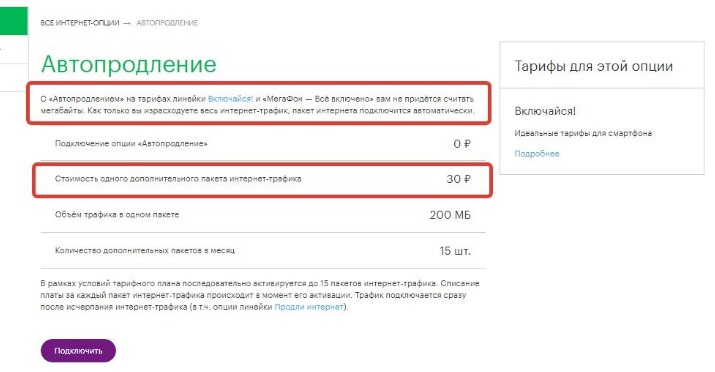
Also make sure that you have a positive balance on your account and that the Internet in your package is available. To do this, just send your operator the appropriate USSD request (usually *100# call) or SMS with the required code.

If there is no Internet on the smartphone, then incorrect APN settings (mobile Internet points) that the SIM card uses to connect to the mobile network may be to blame. APN settings are different for each operator.
For example, to set up an APN with an MTS operator, you must do the following:
- Go to the settings of your mobile gadget;
- Select “Wireless networks” there, then “Mobile network” and then “Access point”;
- Tap on “Create” (“New hotspot”);
- Enter the following data:
| Options: | Data |
|---|---|
| Name | mts |
| APN1 | mts |
| Username | mts |
| Password | mts |
| MCC | 257 |
| MNC | 02 |
| Authentication type | PAP |
| Type APN | Internet (default) |
Click on “Save”, and check the box next to the hotspot you created. Then reboot your device.
Reboot mobile device if Internet is not working
We have described the main problems with 3G, 4G and Wi-Fi connections. If all the described methods do not help you, and you do not know what to do in this case, we advise you to contact a service center where your device will be checked and diagnosed.
Possible problems:
- Wi-Fi module does not work;
- The module responsible for 3G, 4G wireless connections does not work;
- There are drops of water left in the phone after being dropped or used in the rain, and therefore some boards do not work properly.
- The firmware of your software, operating system has failed (In Android, a separate program of the apk format is responsible for each option). You can read about it in the article.
If your smartphone is still under warranty, you can claim a free repair or replacement of the device. If the warranty period is over, then the repair will cost you a pretty penny!
Important! One of the common situations where Wi-Fi does not work is when the device falls from a height, or the presence of old software versions. In some cases, restarting the smartphone or turning Wi-Fi on and off in the settings helps.
If you cannot connect to the Internet on your mobile phone, then we recommend that you restart your device.
- Turn off your phone completely;
- Then remove the battery (battery) from it;
- Wait a couple of minutes;
- Next, put the battery back in and turn on the phone.
This method will also help in a situation where the registration of the phone in the network was not performed correctly.
If there is no Wi-Fi Internet on your phone, we recommend that you restart your router. Also make sure that the cable from the provider is firmly connected to the WAN connector of your router.
Having become acquainted with the reasons for the absence of the World Wide Web, let’s move on to how to set up the work again and enjoy all the delights of technological progress without any problems.
The Internet on a smartphone may load slowly due to a problem with the mobile operator. An unforeseen situation arises due to a breakdown of the device. If Wi-Fi starts to disappear, and calls and SMS messages arrive in normal mode, then this is due to a hardware malfunction.
Disable antivirus on mobile phone
In some cases, working on your gadget, an antivirus can cause problems with Internet access. Temporarily deactivate (disable, delete) it to make sure that it is not the factor causing the problem.
Operator interruptions
If you are on the borders (or further) of the coverage area of a mobile operator, then the mobile Internet will either not be available to you, or will be of poor quality. Make sure that the network indicator has at least two bars, otherwise we recommend finding a reception place with a better signal.
Make sure you don’t run out of your internet limit

If you use a limited (limited) volume of the Internet, then we recommend that you make sure that you have not exhausted your limit. This can usually be checked by going to “Settings” – “Mobile Data”. Or by sending a corresponding request to your mobile operator.
Presence of viruses in the device
Contactless transmission technology first appeared in 2004, but the NFC microchip began to be used in the manufacture of mobile devices many years later. This is the only reason why you will hardly find such a function on outdated smartphones. If necessary, you can independently find out if your phone supports such a payment system, we will talk about this below.
So, the NFC block is equipped only in modern gadgets. If we consider the popular Apple brand, then owners of the iPhone 6 series and above can safely make contactless payments. But we are interested in devices with the Android operating system. Smartphones from the manufacturer Samsung of the S line, starting from the 8th model, A5 and A6 not earlier than 2016, the J family from 2017.
If you find out that your personal smartphone is not capable of making contactless payments, you should not give up and get upset. You can purchase additional equipment that will make your desires come true. The following accessories are available:
- NFC antenna. This is an external antenna, which is equipped with a microchip. It is a small flat area. It needs to be attached to the SIM card, so this method is perfect for devices with a removable back cover. The fixture can be attached to the inner wall and it will not interfere with use. It is characterized by a significant consumption of electrical energy and literally eats up the battery.
- SIM card with NFS support. Currently, major cellular providers have begun to release new developments – SIM cards with an integrated microchip for contactless data transfer. Thus, you can make purchases in the store using Android. But keep in mind that to transfer details to a SIM card, you need a smartphone with a built-in NFC module. The device is sold at any mobile phone office, and you can buy a paired SIM with an antenna. To conduct a transaction, you need to create a separate bank account.
- Separate NSF tags. They are small stickers in which the transmitter is embedded. Now they are easy to get in the digital equipment store. With the help of special applications, such a device can be programmed to perform many functions.
The article describes how to check if the NFC module works or not on Android. A similar procedure can be performed independently. If your smartphone is equipped with a transmitter, then you are in luck, you can switch to a new payment method, through a contactless transaction.
A software problem or a phone crash causes the network to fail. Sometimes the problem is related to the internal elements of the smartphone. To diagnose a mobile device, you will have to turn to the help of professional specialists. The user can contact the nearest service center and determine the reason why there is no fast Internet on the smartphone.
Before contacting the service center, you need to check if the SIM card is active. You should take another phone, put the SIM card in and check its performance. Sometimes the plastic itself is damaged. To change the SIM card, you need to contact the nearest branch of the mobile operator.
Set APN protocol settings in iPv4 / IPv6
This option is available in the APN settings of some phones only. Some devices (such as OnePlus 3) allow you to leave the “APN Protocol” field blank. If your network’s APN settings have this, then make sure that the IPv4 / IPv6 option is enabled instead.
Restore settings automatically
When the Internet starts to disappear, subscribers often call the hotline to request settings from the mobile operator. To do this, open the “Wireless networks” section and then go to the “Mobile network” tab. This is an automatic inclusion when determining the settings (if a failure suddenly occurs).
Initially, a menu will open with the “Communication Operators” tab. All available operators will appear on the screen. When the corresponding operator comes out, you need to check the box “Select automatically”.
What should I do if the Internet does not catch again even after restoring the settings automatically? There is only one option – manual data recovery. You need to select the “APN access points” tab and go to the main menu to find a new access point. You will need to enter this access point.
Usually, the Internet can be lost on the device due to a failure of the mobile operator or the smartphone itself. Sometimes all you need to do is restart your device to solve the problem. A complex problem is also considered, which requires the intervention of qualified specialists. If the Internet on your smartphone is too bad, you need to use the above recommendations or contact the center to flash the device.

Why 4G does not work on the phone: there is an icon.
Why not working 4G in telephone or tablet, interested users when the smartphone has . The main reasons for not having a mobile phone Internet can be malfunctions at the operator’s base station.
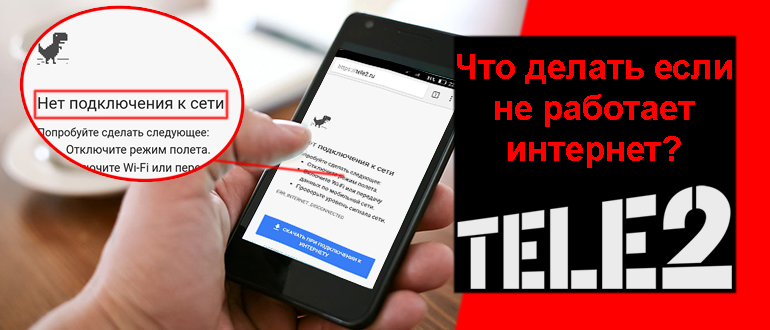
Why mobile Internet Tele2 does not work
Why not connects Internet to telephone Tele2 when still available traffic. . When not works мобильный Internet “Tele2”, the user should not be very upset, because the reason can be quite banal and easily fixable. Today it is difficult to surprise anyone with a connection smartphone to.
Why the Internet does not work on the tablet: check.
Why in tablet not working Internet – common search web request. This is due to the fact that today such gadgets almost caught up with laptops and personal computers in prevalence.
Restarting the Internet router to resume Internet operation
Incorrect selection of the region in the router settings can cause problems due to which the Internet does not work on the phone. Go to the settings, find the Wi-Fi settings section there, and set the correct country of your residence.
Also, in the Wi-Fi settings of your router, make sure that the mode is set to “802.11 b/g/n” instead of the outdated “802.11 n”.
Factory reset your gadget
If nothing helps and the Internet does not work on your phone, you should consider resetting your gadget to factory settings. At the same time, remember that your files in the phone’s memory will be deleted during such a reset.

The reset itself is performed by going to “Settings”, selecting the “Backup” option (or equivalent), and tapping on the “Data reset” option.